
Quickstart: your first test run
Go from sign-up to a finished AI test run in about five minutes. Create a project, start an exploratory run, and review the issues BugBrain finds.
This guide takes you from a brand-new account to a finished test run with real findings — in about five minutes. You won't write any test scripts.
Before you start
You need a reachable URL for the app you want to test (a public staging or production URL). If you only have it on localhost, expose it with a tunnel first.
1. Create your account and workspace#
Sign up
Go to the app, choose Sign up, and register with your work email. Signup is gated to business email addresses and confirmed with a one-time code sent to your inbox.Name your workspace
A workspace is your organization — it holds your projects, team, and billing. Give it your company name.
The onboarding wizard walks you straight from workspace creation into your first project, so you can keep going without leaving the flow.
2. Create a project#
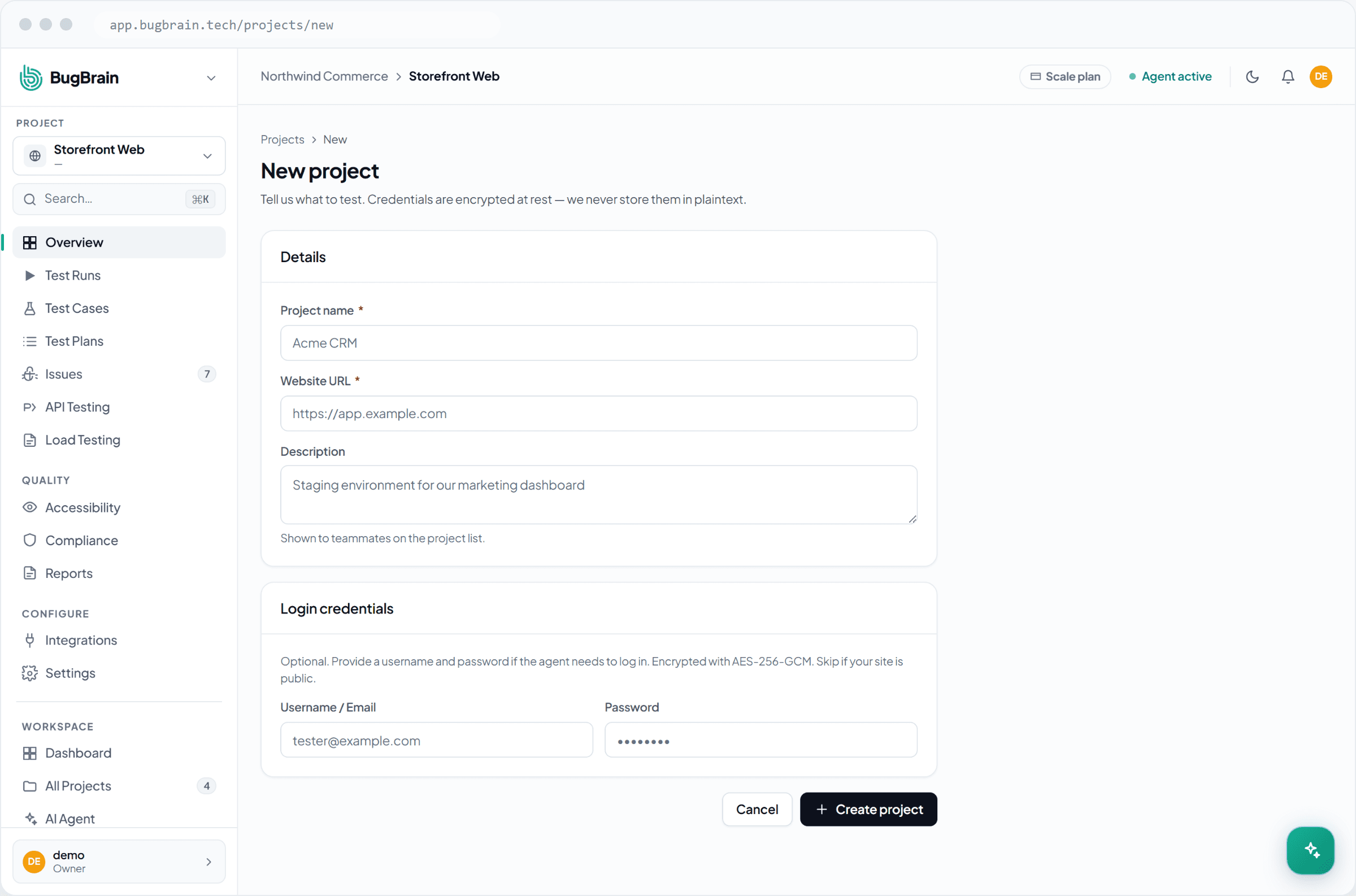
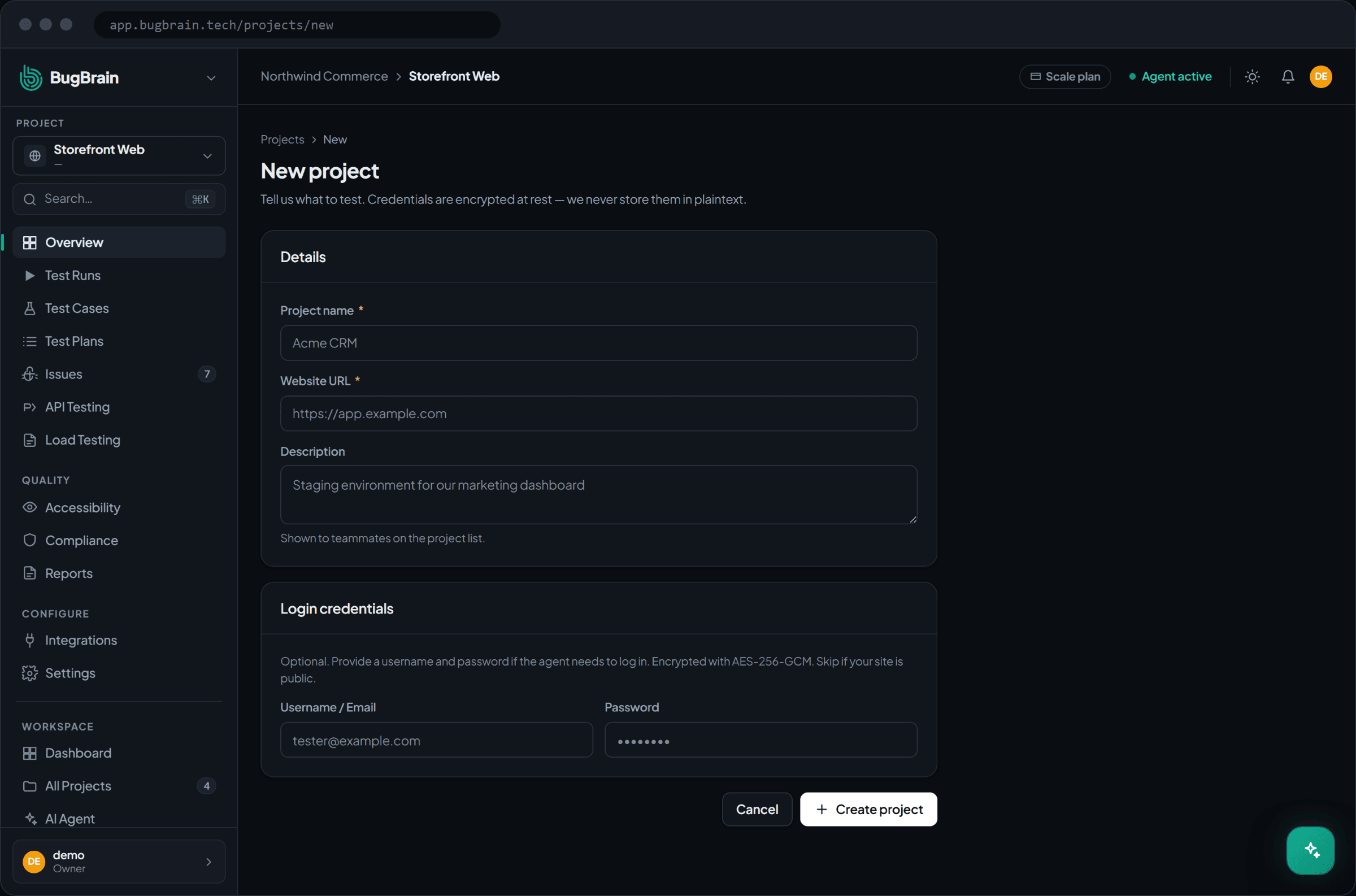
A project points BugBrain at one app.
Choose the project type
Pick Website for a web app. (You can add API and AI-app targets later.)Enter a name and URL
Use the URL where the app is reachable, e.g.https://staging.yourapp.com.Add login credentials (optional)
If you want signed-in flows tested, add a username and password. They're encrypted at rest and only used to log the agent in.
3. Run your first exploratory test#
From the project, start a run. BugBrain's agents open a real browser and explore your app autonomously — mapping pages, driving the important flows, and watching for failures.
You'll see progress update live: pages visited, flows completed, and issues found. You can keep working — the run continues in the background and notifies you when it's done.
4. Review what it found#
Open the finished run to see the full picture:
- Timeline & screenshots — every page the agent visited and action it took.
- Issues — each with a title, severity, category, a screenshot, and steps to reproduce.
- AI action log — the agent's step-by-step reasoning, so you can see exactly how it got there.
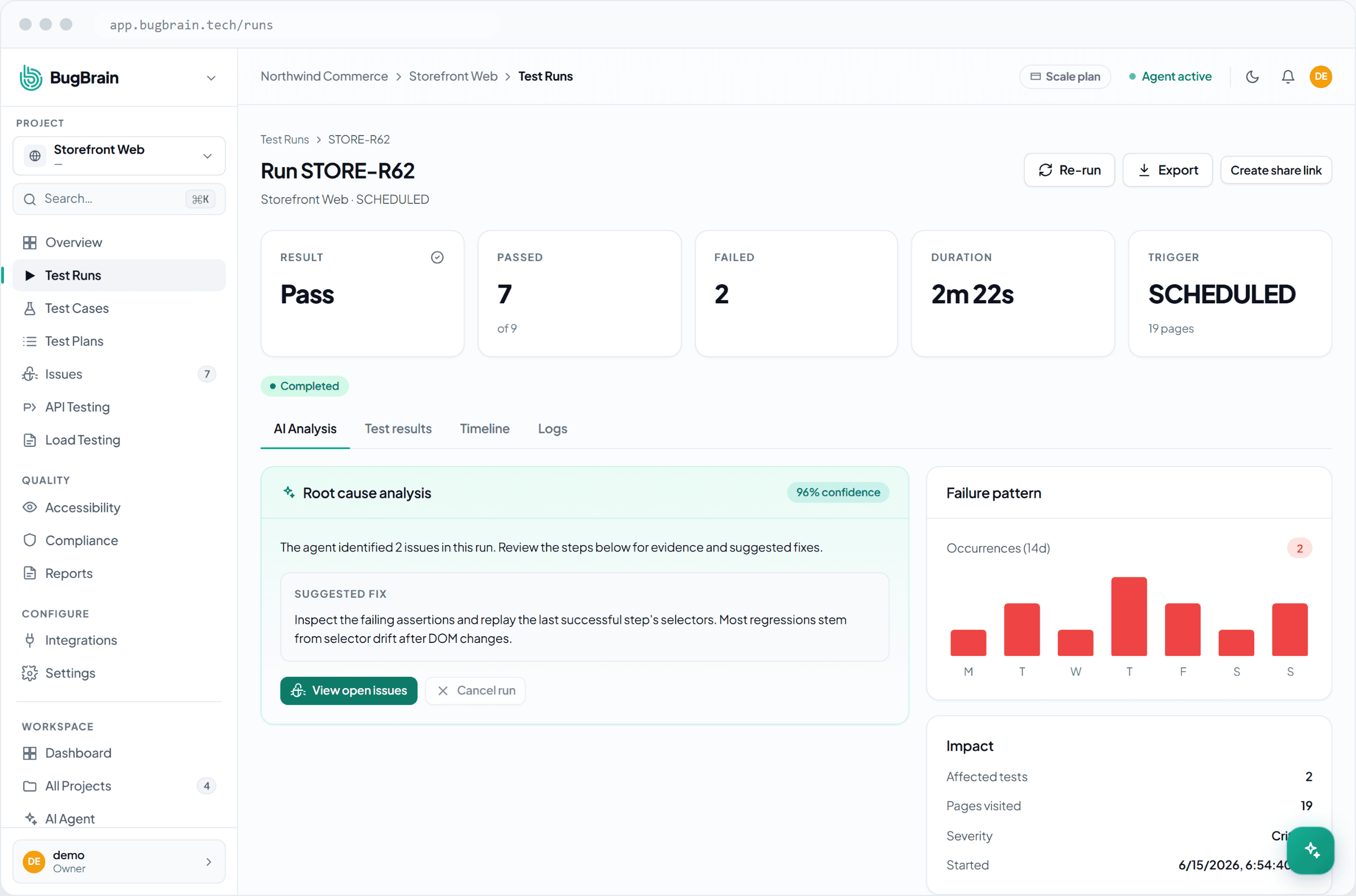
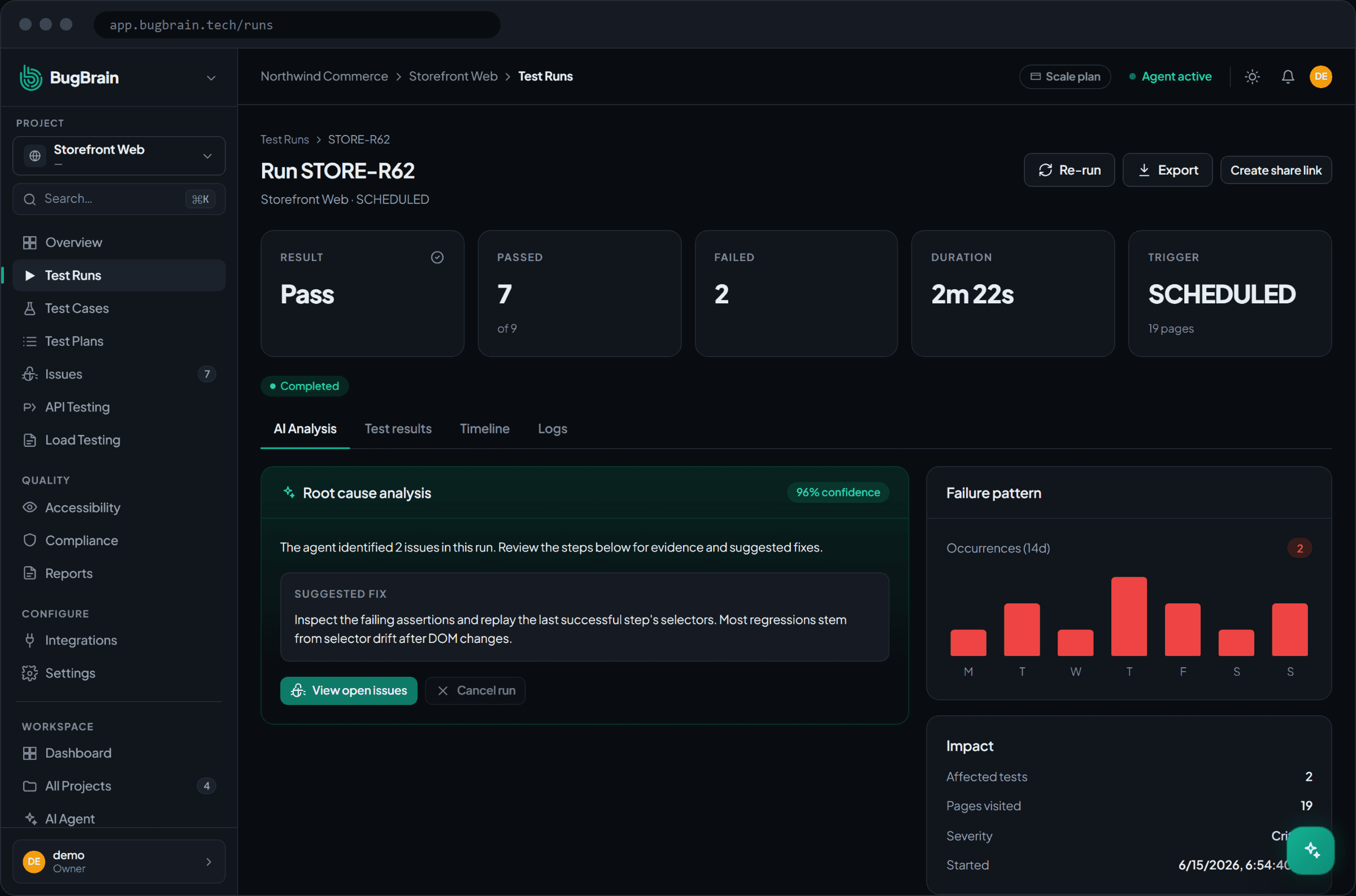
Click any issue to open its detail page, where you can confirm it, mark it a false positive, or push it to your issue tracker.
What's a good first result?
A handful of real issues with clear evidence is a great start. If you see zero, double-check the start URL was reachable and that login (if set) succeeded — the run viewer shows every page actually visited.
Where to go next#
Frequently asked questions
How long does the first run take?
An exploratory run on a typical site finishes in roughly one to five minutes, depending on how many flows it explores and how deep you let it go. You'll see live progress while it runs.
Do I have to provide login credentials?
Only if you want BugBrain to test signed-in pages. Without credentials it explores everything reachable without logging in. Credentials are encrypted at rest — see Security & data handling.
Why did my run find zero issues?
That can be a good sign — but also check that the start URL was reachable, that login (if configured) succeeded, and that the run actually visited the pages you care about. The run viewer shows every page visited and action taken.
Can I test a localhost or staging site?
BugBrain runs in the cloud, so it needs a reachable URL. Use a public staging URL, or expose localhost with a tunnel. Production is fine for read-only exploration; use a safe environment for anything that writes data.