
Test runs
How to start, watch, and read exploratory test runs in BugBrain — the run viewer, screenshots, the AI action log, issues found, and how to cancel or rerun.
A test run is a single execution against a project. This guide covers the most common kind — an autonomous exploratory run — and how to read its results. (Running specific test cases or a plan is covered in Test cases and Test plans.)
What it is#
During an exploratory run, BugBrain's AI agents open a real browser and explore your app like a careful user: they map the reachable pages, choose high-value flows to exercise, drive them end-to-end, and watch for failures — broken interactions, console errors, failed network calls, dead ends, accessibility problems, and more. Everything is captured with screenshots and a step-by-step log.
Why use it#
- Coverage without authoring — find problems across your whole app before you've written a single test case.
- Real-user behavior — the agent interacts the way a person would, surfacing issues scripted tests miss.
- A baseline — the first runs map your app and reveal the obvious bugs, giving you a foundation to build test cases on.
Before you start#
You need a project with a reachable URL. To test signed-in areas, add login credentials in the project (see Projects). You need the test-runs:create permission to start runs.
Start a run#
Open the project
Go to the project's Overview or Test Runs page.Start a new run
Choose Start a run. For an exploratory run, that's all you need — the agent decides what to test.Watch live progress
The run appears under Active Runs with live status: pages visited, flows completed, and issues found so far.
Read the run viewer#
Open any run — live or finished — to see everything it did.
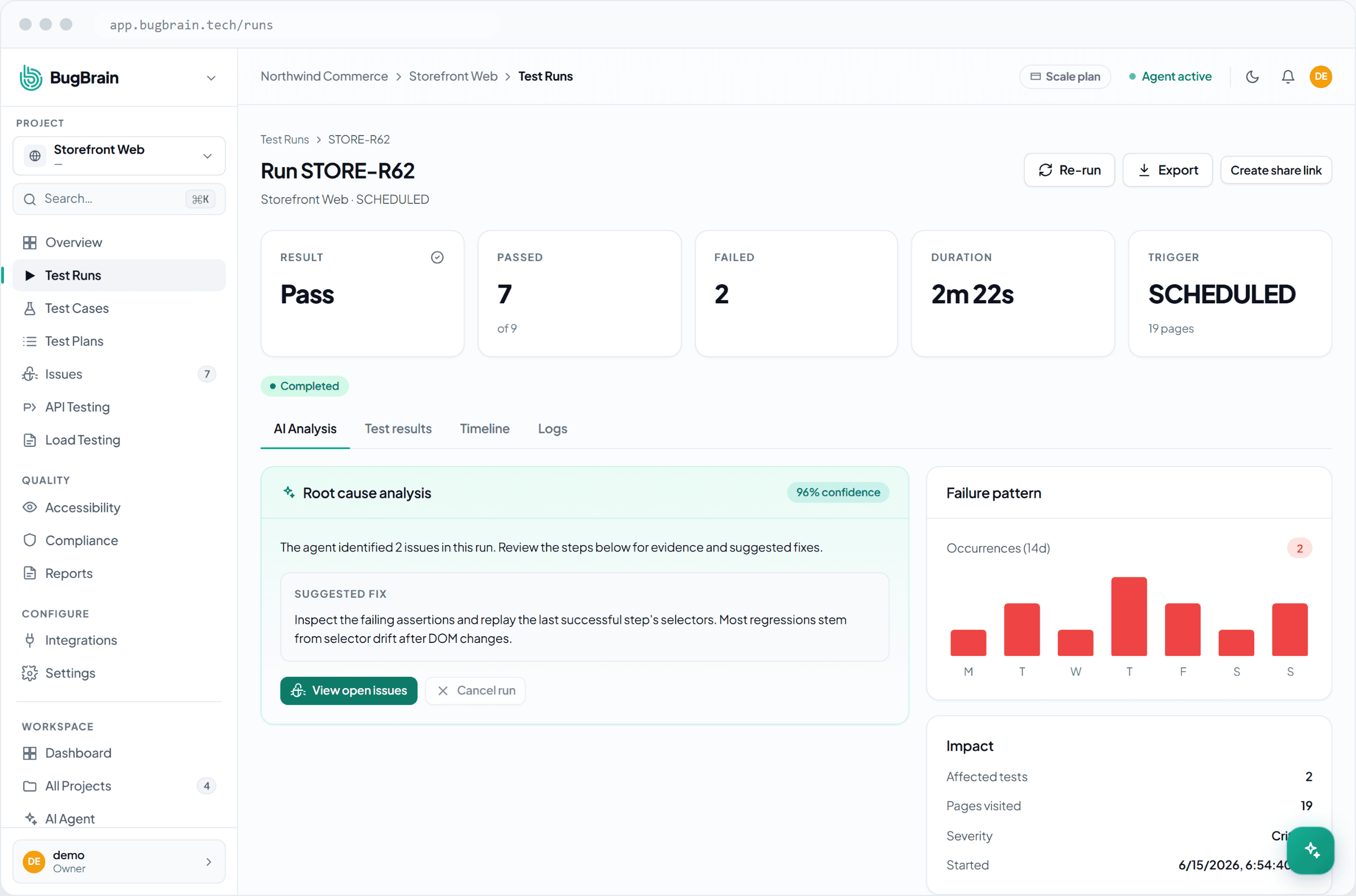
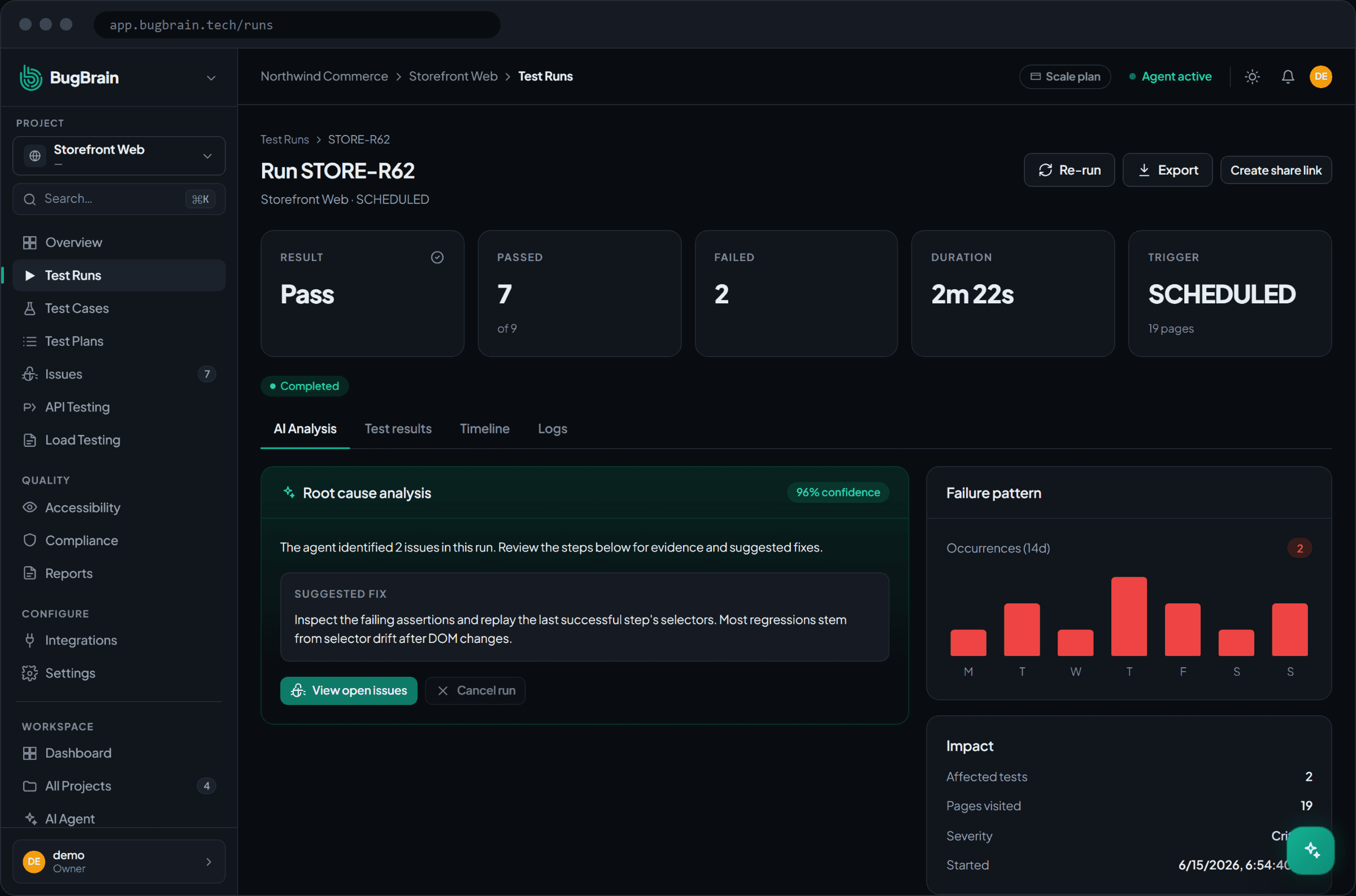
- Status —
RUNNING,COMPLETED,FAILED, orCANCELED. - Timeline & screenshots — each page visited and action taken, with a snapshot and an overlay of what the agent clicked.
- Issues found — the problems surfaced, each with severity, category, and evidence. Click through to the issue detail.
- AI action log — the agent's reasoning step by step (what it thought, what it did, what it observed), so a result is never a black box.
- Artifacts — console and network logs, and a session recording when available.
Stuck on why a run found nothing?
Open the action log and timeline. If the agent never reached your key pages, check the start URL and (if used) that login succeeded — those are the two most common causes.
Manage runs#
- History — the Test Runs page lists past runs, filterable by outcome (passed / failed). Open any to inspect it.
- Cancel — stop an in-progress run from its viewer or the active-runs list.
- Rerun — start a fresh run anytime; results are versioned, so trends build up over time.
- Triggers — runs can be started manually, on a schedule, or by a pull request. The trigger is shown on each run.
Tips#
- Keep the project's start URL pointed at a stable, representative environment.
- Use project settings to bound exploration (max flows, depth) so runs stay fast and focused.
- Once exploratory runs reveal your real flows, promote the important ones to test cases for repeatable coverage.
Related#
Frequently asked questions
What's the difference between an exploratory run and running test cases?
An exploratory run is open-ended — the AI decides what to test and explores broadly. Running test cases (or a test plan) executes specific, saved checks. Use exploratory runs for discovery and case runs for repeatable regression coverage.
Can I control how far a run explores?
Yes. Project settings cap things like max steps per flow, max flows per run, and crawl depth, so a run stays focused and predictable. Risk-based runs (e.g. PR checks) tune these automatically.
Why is my run INCONCLUSIVE or FAILED?
FAILED means the run itself couldn't complete (e.g. the site was unreachable or login failed). INCONCLUSIVE applies to individual checks the agent couldn't verify. The run viewer's error message and action log show exactly where it stopped.
Can I run tests on a schedule or on every pull request?
Yes — schedule runs from the project, and connect the GitHub App for pre-merge runs. See Test plans and PR automation.