
AI agent workspace
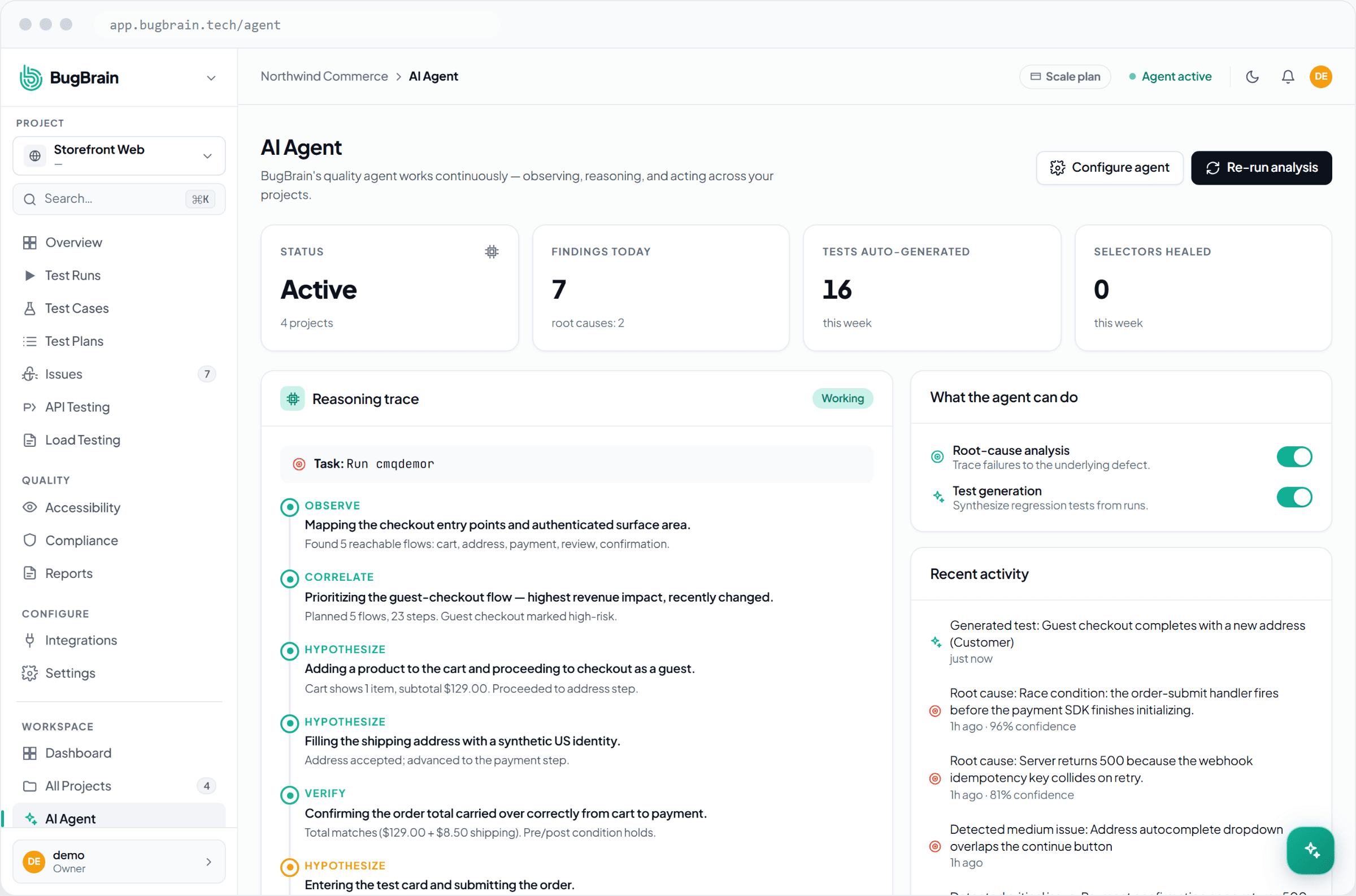
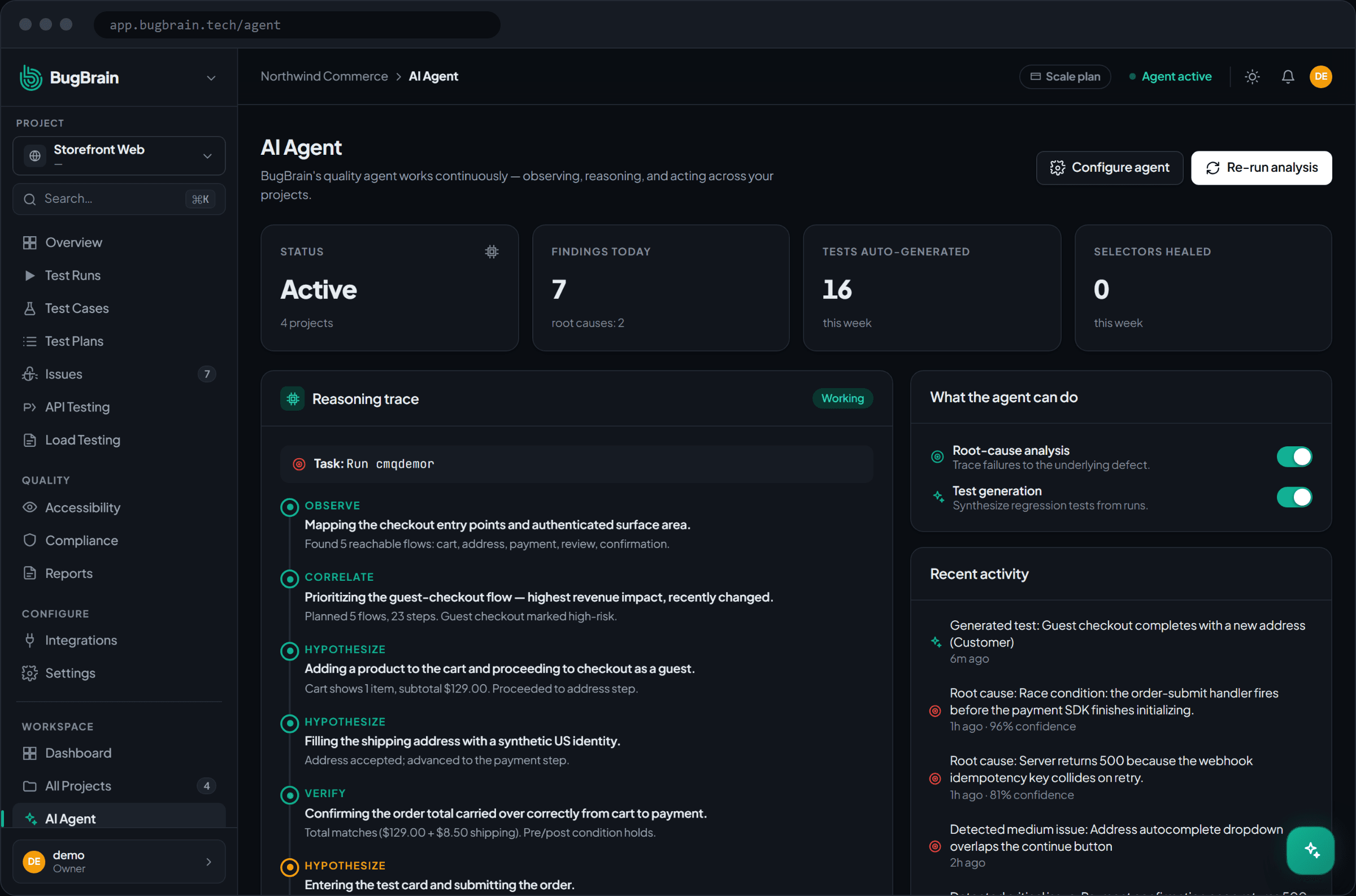
The AI agent workspace shows what BugBrain's autonomous quality agent has been doing — findings, auto-generated and healed test cases, root causes, flaky detections, and its current status.
The AI agent workspace (/agent) is your window into BugBrain's autonomous quality agent — the part of the platform that works continuously in the background, observing your apps, reasoning about what to test, and acting on its own. This page explains what the workspace shows and how to nudge the agent into action.
What it is#
The workspace is a live dashboard of the agent's recent work. At the top you'll see headline numbers:
- Status — whether the agent is active (analysis in flight) or idle, plus how many projects it covers.
- Findings today — issues surfaced today, with the count of root causes identified alongside them.
- Tests auto-generated this week — test cases the agent authored for you from what it learned exploring the app.
- Selectors healed this week — locators the agent repaired automatically so existing tests keep passing after UI changes.
Below the headlines, a reasoning trace shows the agent's step-by-step thinking on its latest task — what it observed, what it decided, and its conclusion — so its work is never a black box. A recent activity feed lists individual events (findings, generated tests, heals, flaky detections), and a panel summarizes what the agent is configured to do.
Why use it#
- See the agent's value at a glance — coverage it added, bugs it found, and maintenance it saved you.
- Understand its reasoning — the trace explains why the agent did what it did, not just the outcome.
- Catch flakiness early — flaky-test detections surface unstable checks before they erode trust in your suite.
- Stay in control — re-run analysis on demand whenever you want fresh coverage on a specific project.
How the agent works#
The agent runs through a continuous loop on your behalf:
- Explores your app to map its pages and flows (the application knowledge graph).
- Authors test cases from the flows it discovers, so coverage grows without manual scripting.
- Heals test cases when the UI shifts — repairing locators rather than letting tests break (see self-healing tests).
- Identifies root causes behind failures, not just the symptom.
- Flags flaky checks that pass and fail inconsistently.
- Prioritizes which tests to run after a change, so the most relevant checks run first.
For the deeper picture of the models and orchestration behind this, see How the AI works.
Re-run agent analysis#
Open the agent workspace
Go to AI Agent (/agent) from the main navigation.Pick the project
Select the project you want the agent to analyze.Run analysis
Choose Re-run analysis. This starts a fresh exploratory run; you can follow the live reasoning trace as the agent works.Review the results
When it finishes, open the findings it surfaced and the test cases it generated, both linked from the workspace.
Let the agent earn its keep
The longer the agent observes a project, the sharper it gets — coverage compounds, healing keeps existing tests green, and prioritization gets more accurate. Re-running analysis after a meaningful change is the best way to keep it current.
Tips#
- Treat "selectors healed" as saved maintenance hours — every heal is a test that would otherwise have needed a manual fix.
- Read the reasoning trace when a finding surprises you; it shows the path the agent took to get there.
- Re-run analysis after a release so newly added flows get explored and covered.
Related#
Frequently asked questions
What does the AI agent workspace show?
It's a live dashboard of the autonomous agent's activity — today's findings, test cases auto-generated this week, root causes identified, selectors healed, flaky detections, and whether the agent is currently active or idle.
What does the AI agent actually do?
It explores your app, authors and heals test cases, identifies the root cause of failures, flags flaky tests, and prioritizes which tests to run after a change — continuously, without you scripting anything.
Can I trigger the agent manually?
Yes. From the workspace you can re-run agent analysis against a selected project, which kicks off a fresh exploratory run and updates the reasoning trace and activity.
Why is the agent showing as idle?
Idle simply means there's no analysis in flight right now. Start a run, or re-run analysis on a project, and the agent's status and reasoning trace update as it works.