
Projects
A project is one application under test in BugBrain — this guide covers creating a project, setting its URL and type, adding login credentials, and tuning advanced run settings.
A project is one application you point BugBrain at — a single website or API under test. Everything BugBrain does, from exploratory runs to test cases and issues, hangs off a project, so it's the first thing you create and the place you go to control how testing behaves.
What it is#
A project is the home for one app under test. It stores:
- A name and URL — where the app is reachable (for example
https://staging.yourapp.com). - A type — Website or API. This is fixed when you create the project; pick a new project for a different target.
- Optional login credentials — a username and password (and, where needed, a second-factor secret) so agents can test signed-in flows. They're encrypted at rest.
- Saved sessions — reusable authenticated sessions so the agent doesn't have to log in from scratch on every run.
- Browser fingerprints — a per-element locator cache that helps the agent find the same buttons and fields reliably over time.
- Advanced config — the environment label, allowed origins, ignored error patterns, and caps on how far a run explores.
Each project also gets a short ID (like TA-…) that makes it easy to reference in conversations, links, and integrations.
Why use it#
- One place to configure testing — URL, login, and exploration limits all live together.
- Signed-in coverage — adding credentials lets the agent reach the pages behind your login, which is where most real workflows live.
- Predictable, bounded runs — the advanced caps keep runs fast and focused instead of crawling forever.
- Separation by app — keep each application's runs, test cases, and issues cleanly apart.
Before you start#
- You need a reachable URL for the app. BugBrain runs in the cloud, so a public staging or production URL works; for localhost, expose it with a tunnel first.
- You need the
projects:viewpermission to see projects,projects:editto create or change one, andprojects:deleteto remove one. See Team & roles. - For anything that writes data, point the project at a safe environment rather than production.
Create a project#
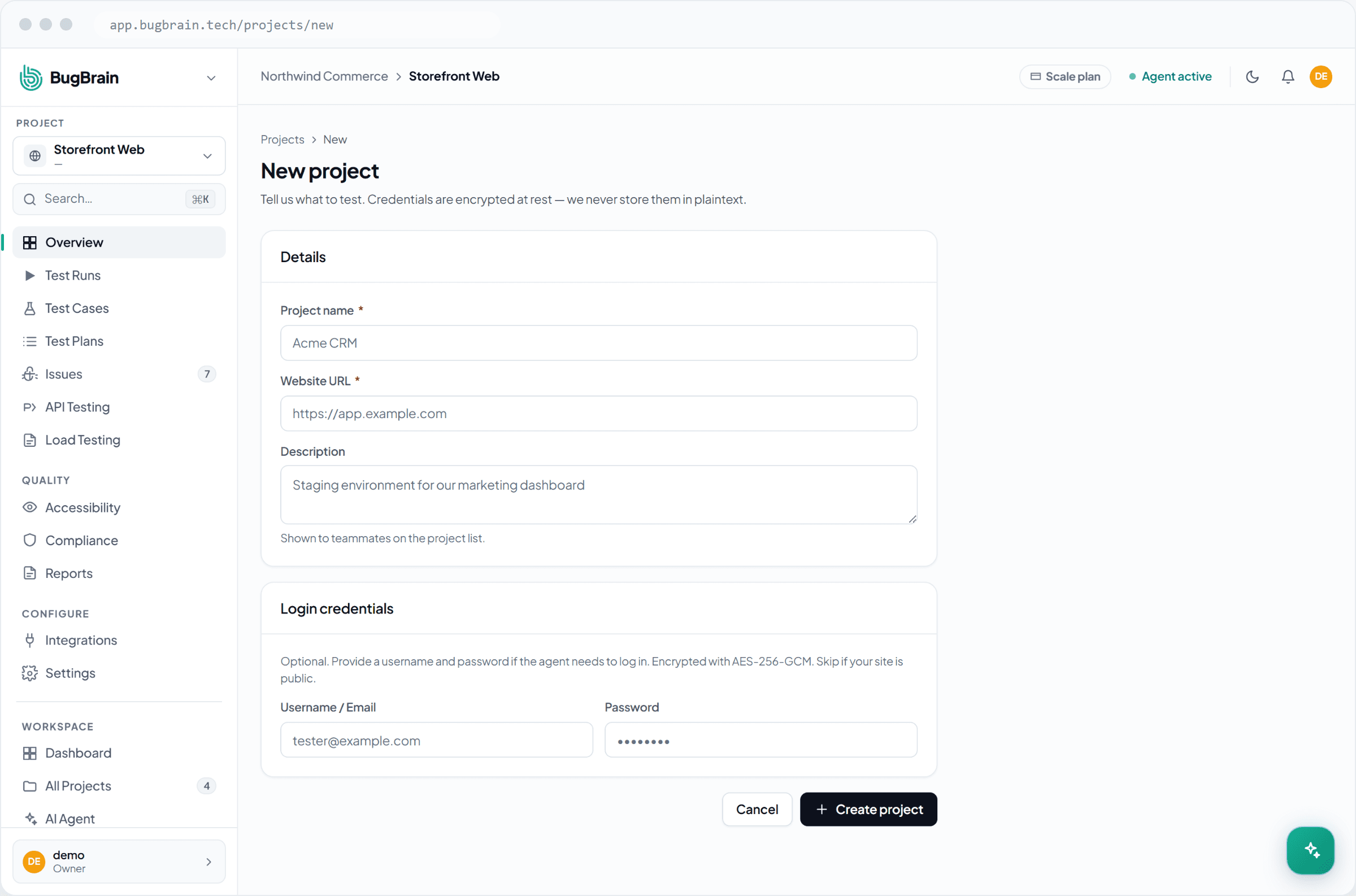
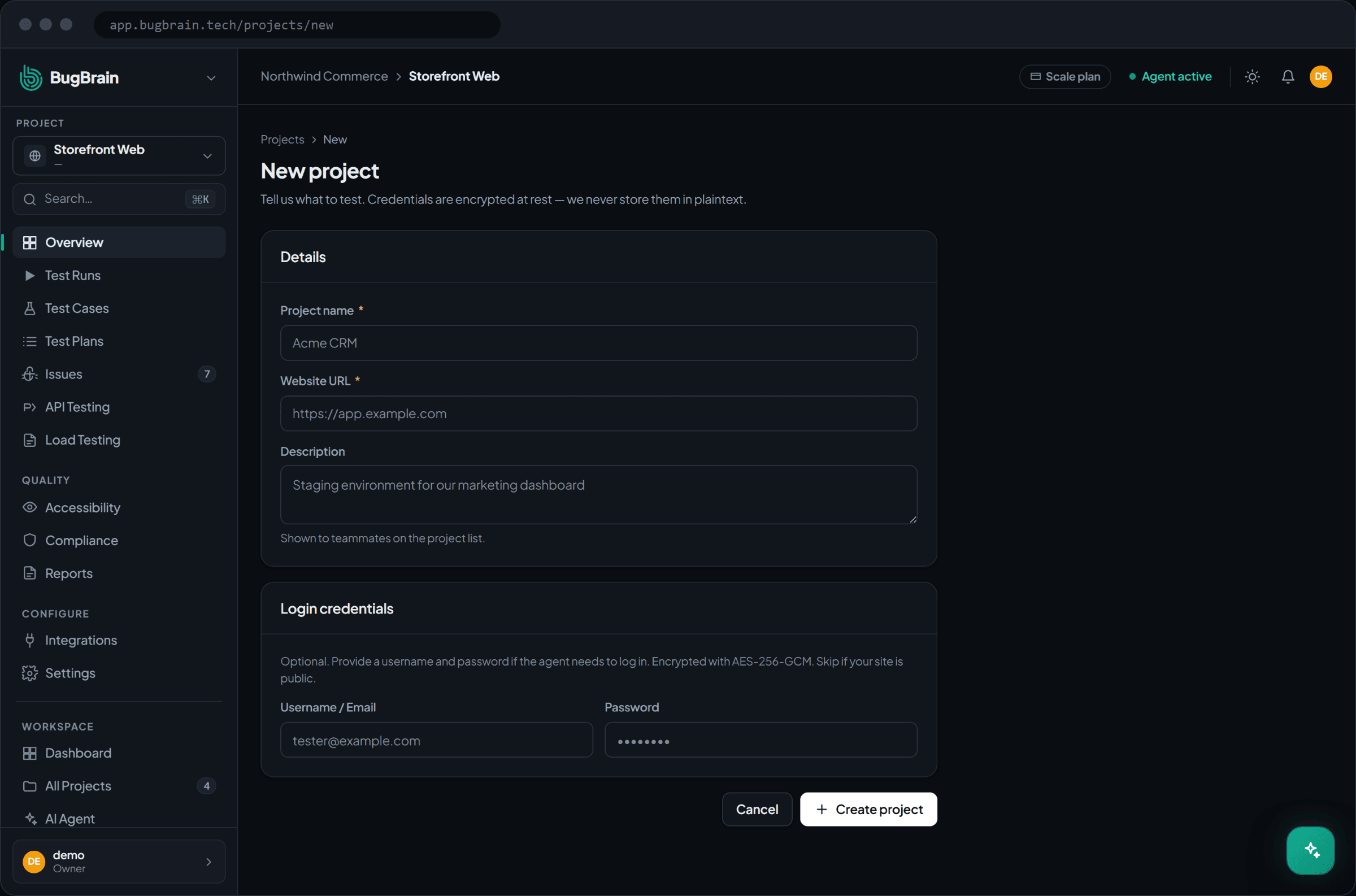
Open the project list
Go to All Projects and choose New project. (The onboarding wizard also walks you through this the first time.)Pick the type
Choose Website for a web app or API for an HTTP API. This is set once per project.Enter a name and URL
Give it a clear name and the URL where the app is reachable, e.g.https://staging.yourapp.com.Add login credentials (optional)
If you want signed-in flows tested, add a username and password. They're encrypted at rest and used only to log the agent in.Save
The project is created and ready to run. Start an exploratory run right away — see Test runs.
Configure advanced settings#
Open the project's Settings tab to tune how runs behave. These settings keep exploration bounded and reduce noise.
- Environment — label the project as production, staging, or development so reports and teammates know what they're looking at.
- Allowed origins — extra domains (beyond the project URL's own origin) the agent is allowed to navigate to, so a run doesn't wander off your app onto third-party sites.
- Ignored error patterns — patterns for console or network errors you want runs to ignore (for example known noisy third-party warnings), so issues stay signal-rich.
- Max steps per flow — how many actions the agent may take while exercising a single flow.
- Max flows per run — how many distinct flows one run will explore.
- Crawl depth — how far from the start URL the agent will navigate.
Start tight, then loosen
Lower caps make runs faster and cheaper while you're getting set up. Once you trust the results, raise max flows and depth to broaden coverage.
Edit or delete a project#
- Edit — change the URL, credentials, or advanced config anytime from the project's Settings tab. New runs pick up the changes immediately.
- Delete — removing a project is destructive: its runs, test cases, issues, and history go with it and there's no undo. Export anything you need first.
Deleting is permanent
There's no recycle bin for projects. If you only want to pause testing, stop scheduling runs instead of deleting the project.
Tips#
- Keep the start URL pointed at a stable, representative environment so trends stay comparable run to run.
- Use the ignored-error patterns to silence known third-party noise rather than triaging the same false positive repeatedly.
- Add login credentials early — most valuable flows are behind a sign-in, and the agent can't reach them otherwise.
Related#
Frequently asked questions
What is a project in BugBrain?
A project represents a single application you want to test — a website or an API. It holds the app's URL, its type, optional login credentials, and the settings that bound how far runs explore.
Are login credentials safe to store?
Yes. Credentials are encrypted at rest and used only to log the AI agent into your app so it can test signed-in flows. They're never shown back in plain text or included in logs.
Can I test a website and an API in the same project?
No — each project has one type, either Website or API. Create a separate project for each target. They can still live side by side in the same workspace.
What happens when I delete a project?
Deleting a project is permanent and removes its runs, test cases, issues, and history. There's no undo, so export anything you need first.