
QA tool integrations
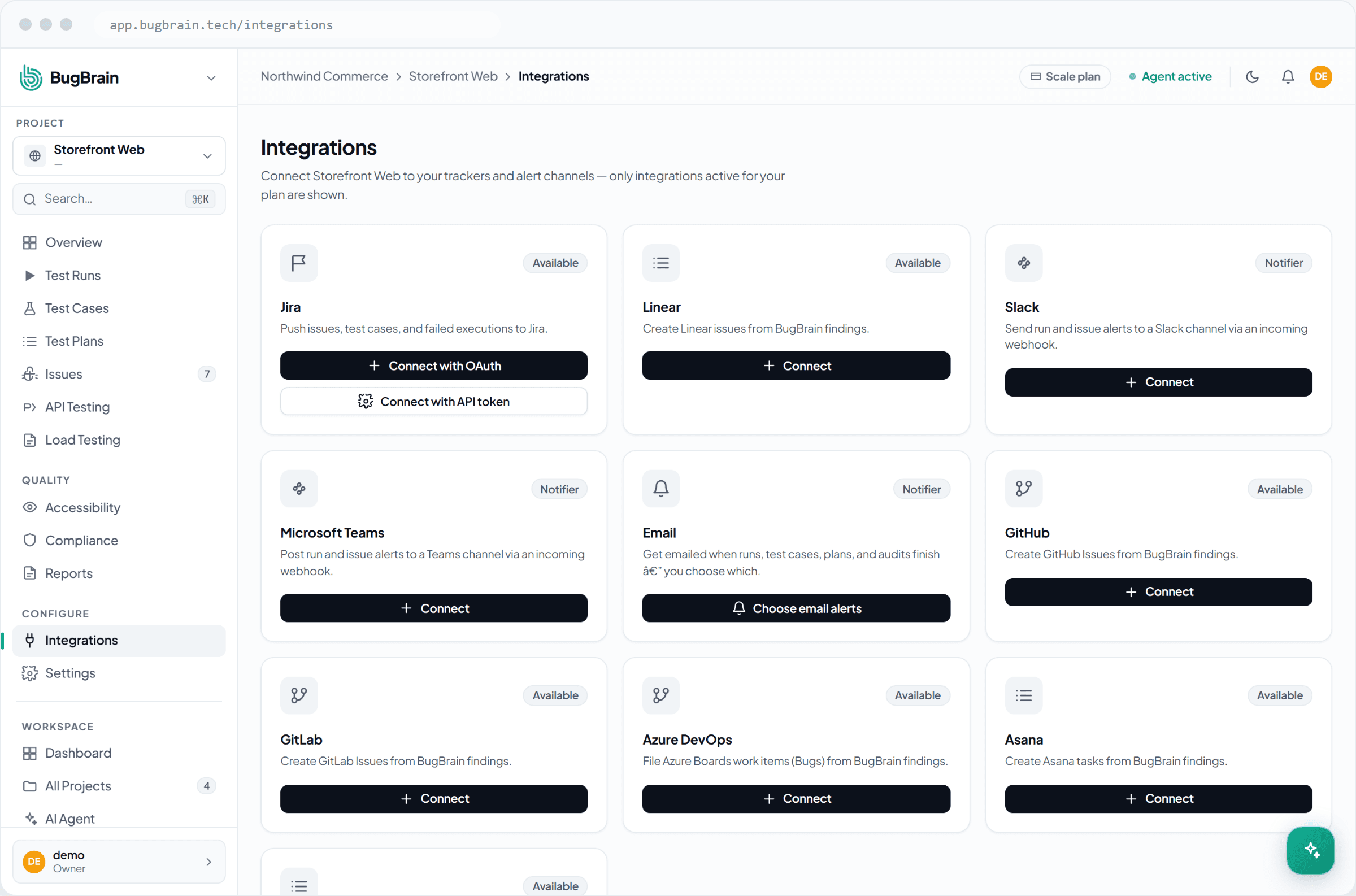
How to connect BugBrain to your tools — Jira, Linear, Slack, Teams, Email, GitHub Issues, GitLab Issues, Azure DevOps, Asana, and ClickUp — so runs notify the right channels and issues become tracker tickets in one click.
Integrations connect BugBrain to the tools your team already uses — issue trackers and chat — so test results flow into your workflow automatically. This guide covers connecting an integration, choosing what notifies where, and pushing issues to a tracker.
What it is#
Integrations are org-scoped: you connect them once for the whole workspace. There are two kinds:
- Issue trackers — Jira, Linear, GitHub Issues, GitLab Issues, Azure DevOps, Asana, and ClickUp. These receive issues you push from a bug's detail page.
- Notifiers — Slack, Teams, and Email. These receive notifications when runs and issues happen.
Almost every tool now connects with a single Connect button: BugBrain sends you to the tool's own consent screen (Jira, Linear, Slack, GitHub, GitLab, Asana, ClickUp, Azure DevOps), you approve, and you're back — no API keys or IDs to copy. Slack even picks the channel on its own consent screen. Microsoft Teams is the one exception (Microsoft retired its incoming connectors): a short guided wizard walks you through creating a Workflows webhook and pasting its URL.
Why use it#
- No copy-paste — a bug becomes a Jira/Linear/GitHub ticket in one click, with its details and evidence attached.
- The right people, in real time — a run completing or an issue appearing can ping the Slack or Teams channel that owns it.
- A closed loop — resolving an issue in BugBrain can sync status back to the linked ticket, so nothing drifts out of date.
Before you start#
Integration availability is three-gated, and connecting requires active billing:
- Feature flag — each integration has an
integration.<key>kill-switch. If it's off platform-wide, the integration is unavailable. - Plan matrix — your plan defines which integrations it includes.
- Per-org grant — a super-admin can grant a specific integration beyond your plan.
An integration is available when the flag is on and (your plan allows it or you've been granted it). Connecting or editing additionally requires active billing. You need the integrations:view permission to see integrations and integrations:manage to connect or change them.
Already connected? You're grandfathered.
The plan and grant checks run when you connect or edit an integration — not on every notification. So an integration that's already connected keeps sending even if a plan change would no longer allow a new connection. Only the feature-flag kill-switch can stop an existing integration.
Connect an integration#
Open Integrations
Go to Projects → Integrations.Click Connect
You're sent to the tool's own sign-in/consent screen; approve and you're brought straight back. (Teams instead opens a short webhook wizard.)Pick the target
For trackers, choose where pushed items should land — the Jira project, Linear team, ClickUp list, GitHub repository, and so on — from a dropdown; no IDs to look up. Slack needs nothing: you picked the channel during consent.Test the connection
Use Test connection on the card to confirm the credential works before you depend on it.
If a card says 'Reconnect needed'
Some tools expire their grants (for example Atlassian revokes unused refresh tokens after about 90 days of inactivity). When that happens the card shows a Reconnect needed badge — click Reconnect and approve again; your target selection is kept.
Route events to channels#
Decide which events go where:
- Run completed — notify a Slack channel, Teams channel, or email when a test run finishes.
- Issue found — from an issue's detail page, create a linked Jira, Linear, GitHub (or other tracker) ticket in one click.
- Resolution sync — resolving the issue in BugBrain can update the linked tracker ticket, keeping both sides in step.
Outbound calls are SSRF-guarded
Every call BugBrain makes to your tools is checked against an SSRF (server-side request forgery) guard — it won't be tricked into reaching internal or private addresses. This is a safety control on our side and needs nothing from you.
Tips#
- Connect a tracker first so the one-click "create issue" button is ready when you start triaging.
- Route only the events that matter to each channel — a firehose of notifications gets muted fast.
- Use the test action whenever you change credentials, so a broken connection surfaces before a real run needs it.
Related#
Frequently asked questions
Which tools can I connect?
Issue trackers — Jira, Linear, GitHub Issues, GitLab Issues, Azure DevOps, Asana, and ClickUp — and notifiers — Slack, Teams, and Email. Trackers receive one-click issues; notifiers receive run and issue notifications.
How do I send a bug to Jira or Linear?
Connect the tracker once, then from any issue's detail page create a linked ticket in one click. The link is recorded on the issue, and resolving in BugBrain can sync status back to the linked ticket.
Why can't I connect an integration even though I can see it?
Availability is gated three ways — a feature-flag kill-switch, your plan's allowed integrations, and any per-org grant — and connecting also requires active billing. If a tool is greyed out, your plan may not include it or billing may be inactive; ask a workspace owner or super-admin.
Will an integration keep working if my plan changes?
Already-connected integrations are grandfathered — they keep sending even if the plan matrix would no longer allow a new connection. Only the feature-flag kill-switch can stop an existing integration; the plan re-check happens on connect and edit, not on every push.