
API load testing
How to run API load testing in BugBrain — drive many concurrent requests at one saved API request, pick a load profile, set SLA thresholds, watch live progress, and read latency percentiles, throughput, and the AI Four-Golden-Signal report. A metered add-on.
Load testing drives a large, controlled burst of traffic at a single saved API request and reports how your endpoint holds up — latency, throughput, errors, and where it starts to break down. This guide covers running a load test and reading the results. It is a metered add-on, so it must be enabled for your workspace first.
What it is#
A load test takes one saved API request and reuses it as-is — same auth, headers, body, and base URL — then sends many concurrent copies of it to measure performance under pressure. You shape the traffic with a profile and judge the outcome against thresholds you set.
A virtual user (VU) is one simulated client looping the request. A profile ramps VUs up and down over time through a series of stages, each a duration paired with a target number of VUs. BugBrain ships preset profiles plus a custom option:
- SMOKE — a tiny load to confirm the endpoint works under traffic at all.
- LOAD — typical expected traffic.
- STRESS — push past expected traffic to find the limit.
- SPIKE — a sudden surge, then back down.
- SOAK — sustained traffic over a long period to find slow leaks.
- CUSTOM — define your own ramp stages.
You can also set SLA thresholds in the k6 style — pass/fail conditions like a maximum 95th-percentile latency or a maximum error rate — so a run is judged automatically, not just measured.
Why use it#
- Real performance, real config — because it reuses a saved request, you're testing the actual endpoint with the actual auth and payload, not a simplified stand-in.
- Find the breaking point — STRESS and SPIKE profiles reveal where latency climbs and errors begin, before your users find it.
- Answers, not just numbers — the AI report turns raw percentiles into named bottlenecks and a plain-English story for every audience.
Before you start#
Load testing is a metered, feature-flag-gated add-on. Before the page works for your workspace:
- A super-admin must turn on the
load-testingfeature flag and grant a monthly load-request quota above zero. If the flag is off or the quota is 0, the page shows a "not enabled" notice with an upgrade or contact path. - You need a saved API request to target — see API testing.
- You need permissions:
api-testing:viewto see load tests andapi-testing:loadto launch one.
Only load-test systems you're allowed to
A load test sends heavy traffic that can overwhelm a service and resembles a denial-of-service attack. The launch step requires you to confirm you're authorized to test the target. Never point a load test at a system you don't own or have explicit permission to test.
Platform ceilings
Every run is bounded: at most 500 virtual users, 3600 seconds of duration, and 5000 requests per second, and only one load run per workspace can be in flight at a time. These limits protect both your target and the platform.
Launch a load test#
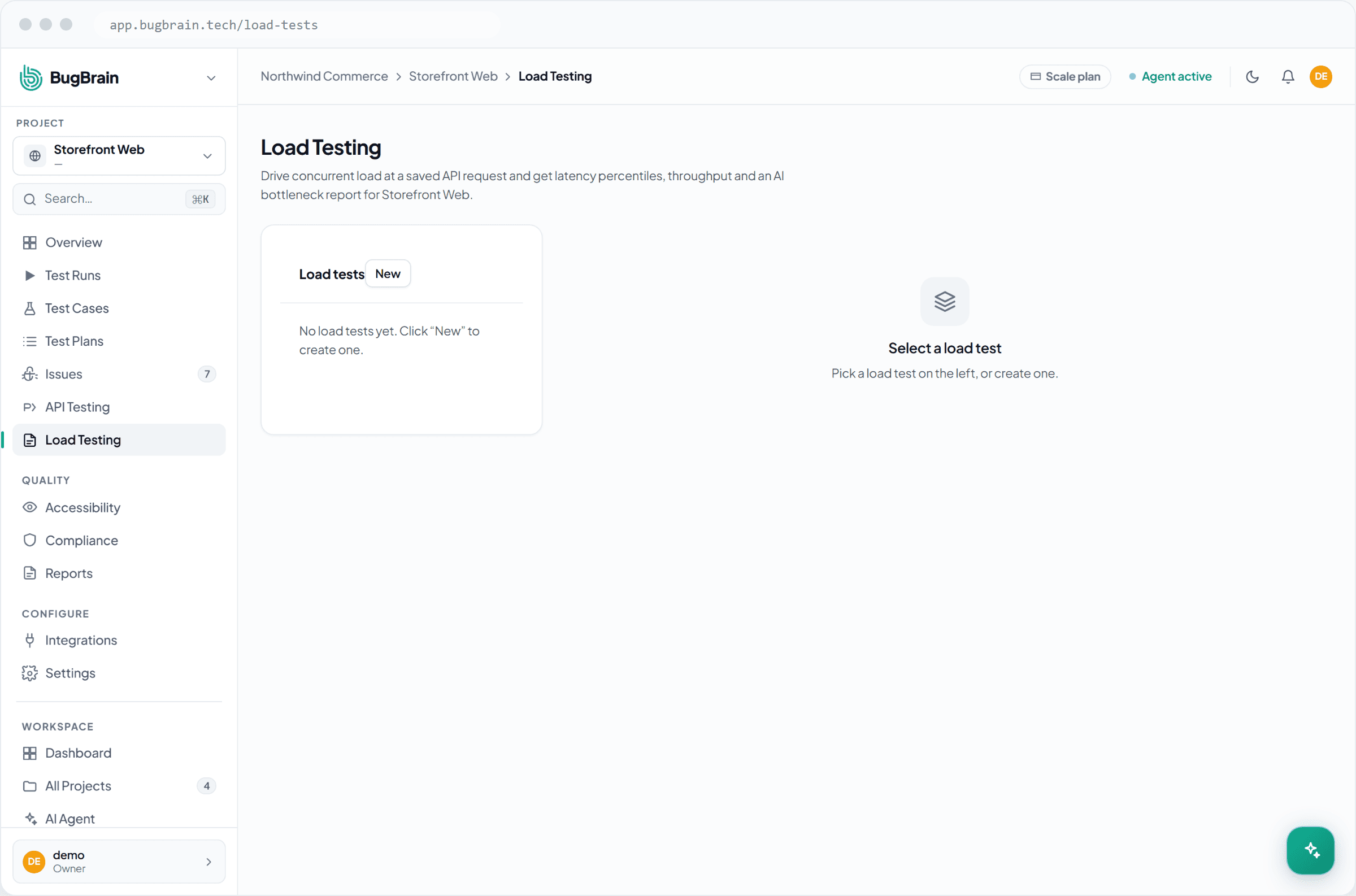
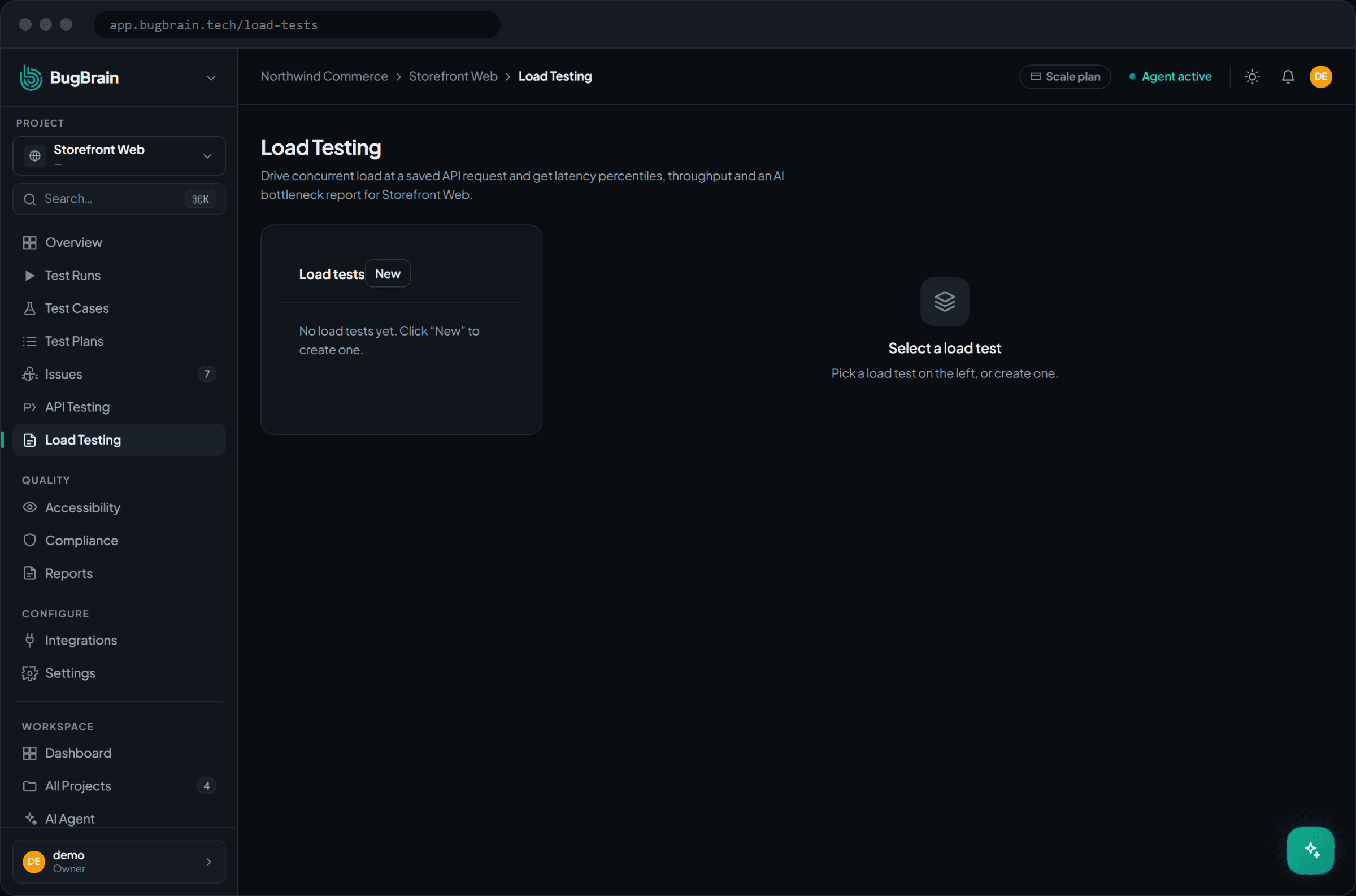
Open Load tests
Go to Projects → Load tests for your project.Pick the request and a profile
Choose the saved API request to drive, then pick a profile — SMOKE, LOAD, STRESS, SPIKE, SOAK, or CUSTOM. For CUSTOM, define your own ramp stages (each a duration and a target VU count).Set SLA thresholds
Add the pass/fail conditions you care about, such as a maximum p95 latency or a maximum error rate.Confirm authorization and launch
Tick the authorization checkbox to confirm you're allowed to load-test the target, then start the run. One run is metered against your monthly quota.
Watch live progress#
While a run is in flight, BugBrain streams its progress so you can see traffic build and react if something looks wrong.
- Virtual users — how many VUs are active as the profile ramps.
- Requests per second (RPS) — the live throughput.
- Error rate — the share of requests failing right now.
Read the results#
When a run finishes, the report combines hard numbers with an AI analysis.
- Latency percentiles — p50, p95, and p99 response times, so you see typical and worst-case latency.
- Throughput — requests served per second across the run.
- Error rate — the overall share of failed requests, and whether your thresholds passed or failed.
- Time-series — a downsampled chart of how the metrics moved over the run.
- AI Four-Golden-Signal report — named bottlenecks across LATENCY, TRAFFIC, ERRORS, and SATURATION, the degradation "knee" (the load level where performance falls off), and tailored narratives for developers, QA, and stakeholders.
Start small, then push
Run a SMOKE profile first to confirm the endpoint behaves under light traffic, then move to LOAD and STRESS. Watching the knee shift between runs tells you whether a change actually improved capacity.
Tips#
- Set thresholds that match a real SLA (for example, p95 under a target latency) so a run gives a clear pass or fail, not just a graph.
- Use SOAK to catch slow problems — memory leaks and connection exhaustion that only show up after sustained traffic.
- Mind the per-workspace concurrency cap: only one load run runs at a time, so coordinate with teammates before launching.
Related#
Frequently asked questions
What does a load test run against?
One saved API request. Load testing reuses that request's auth, headers, body, and base URL exactly as-is and drives many concurrent copies of it, so you stress-test a real endpoint without re-entering anything.
What's a virtual user, and how many can I use?
A virtual user (VU) is one simulated client sending requests in a loop. A profile ramps VUs up and down over time. The platform caps a run at 500 virtual users, 3600 seconds, and 5000 requests per second, and only one load run can be in flight per workspace at a time.
Why do I have to tick an authorization box before launching?
Load testing sends a flood of traffic, which can look like a denial-of-service attack. The launch step requires you to confirm you're authorized to load-test the target — only point it at systems you own or have permission to test.
What is the Four-Golden-Signal report?
After a run, an AI report reads the results and calls out bottlenecks across the four golden signals — LATENCY, TRAFFIC, ERRORS, and SATURATION — finds the degradation "knee" where performance falls off, and writes plain-English narratives for developers, QA, and stakeholders.
Why do I see a "not enabled" notice?
Load testing is a metered add-on. It needs the load-testing feature flag on and a monthly load-request quota above zero. If either is missing, the page shows a "not enabled" notice with an upgrade or contact path.