
Insights & analytics
Insights is BugBrain's cross-project analytics dashboard — trends for pass rate, test volume, and issues found, plus LLM cost tracking and quality metrics across every project.
Insights is BugBrain's cross-project analytics dashboard — the place to step back from individual runs and see how quality, testing volume, and AI cost are trending across your whole workspace. It answers the "how are we doing overall?" questions that a single run can't.
What it is#
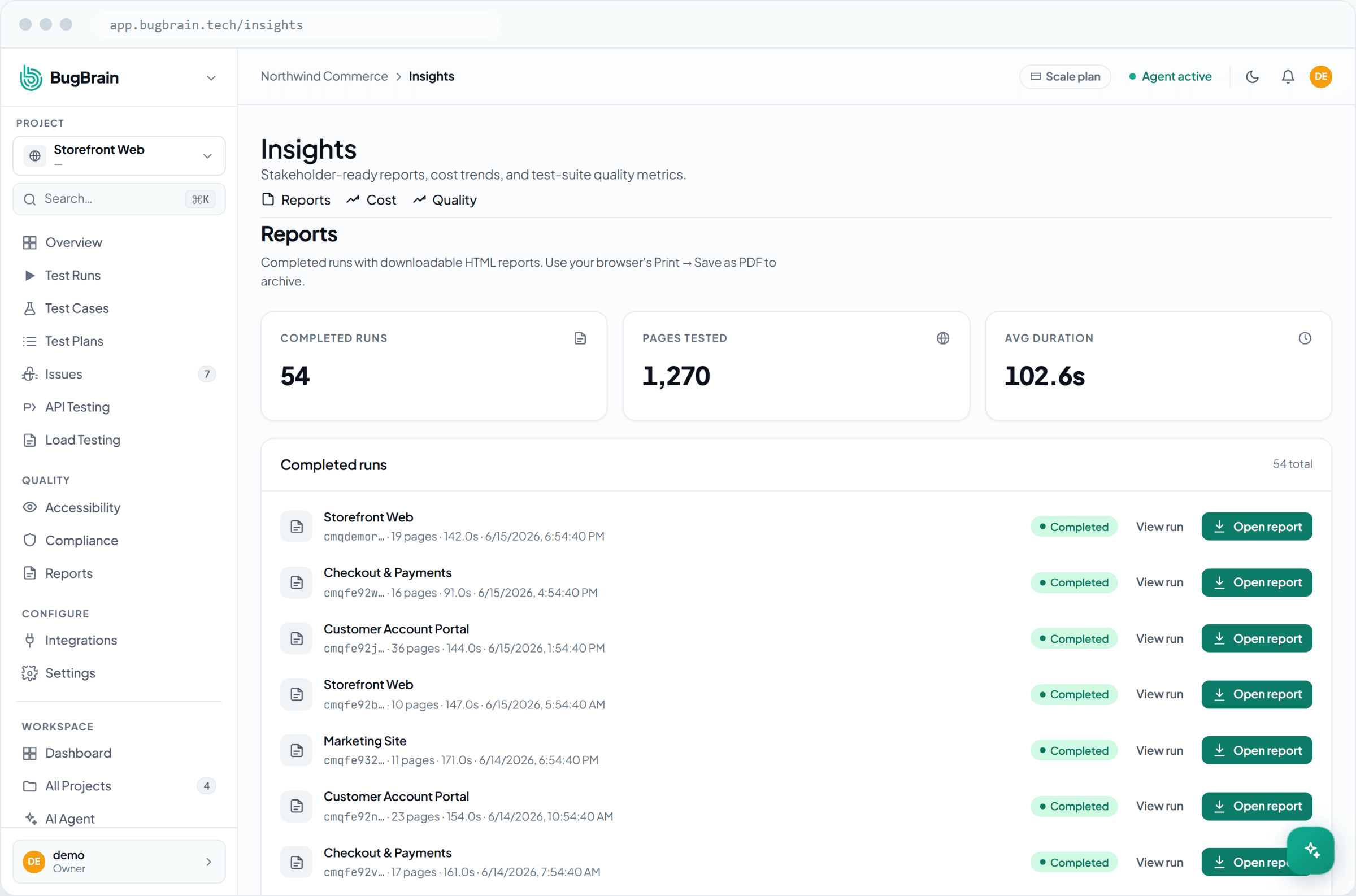
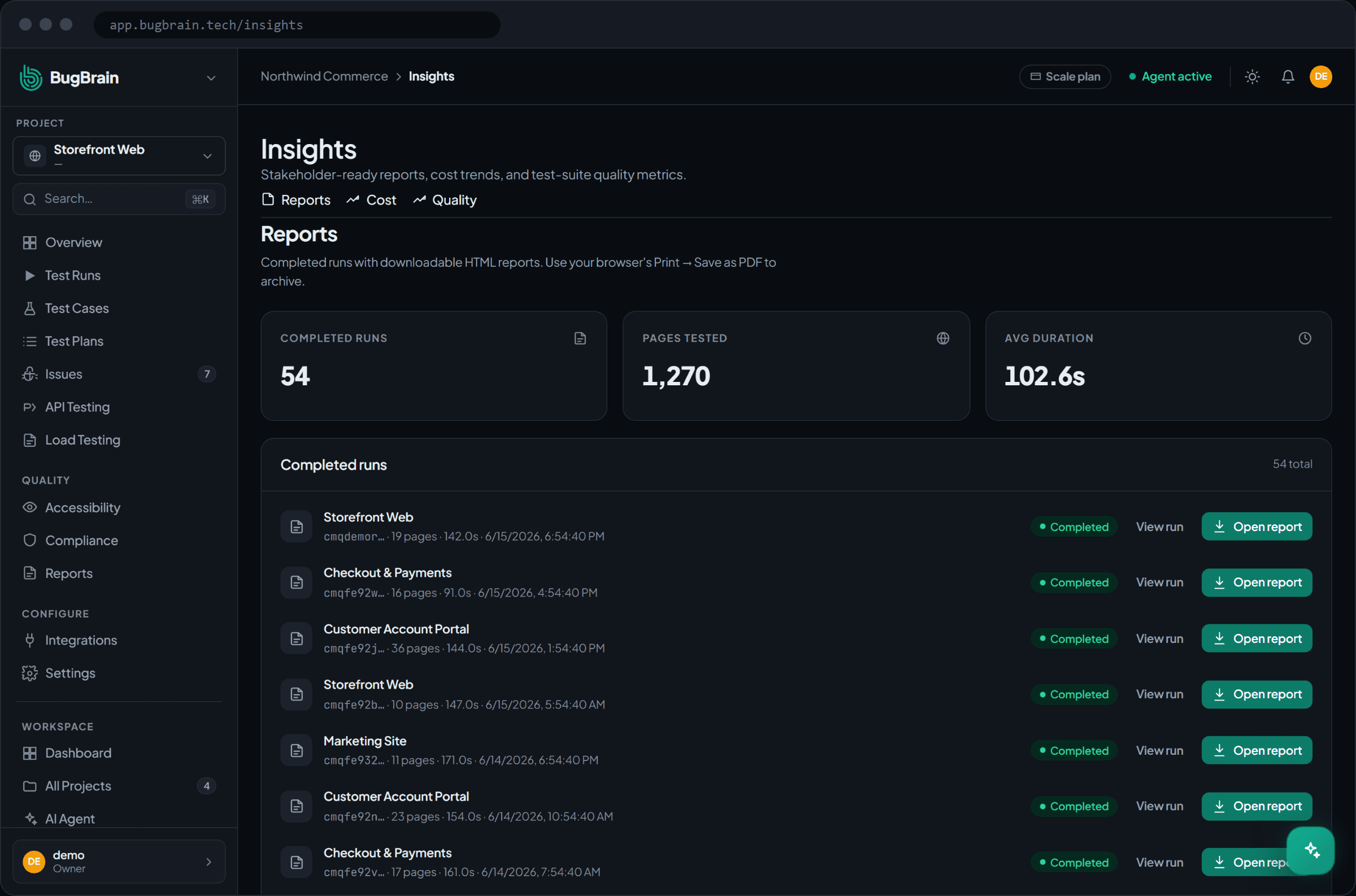
Insights has three views, each aggregating across all your projects:
- Reports (
/insights/reports) — trend analytics: pass rate over time, test volume (how much testing you're doing), and issues found. This is your at-a-glance health check for the whole workspace. - Cost (
/insights/cost) — LLM spend, broken down per project and per model, with total tokens and an estimated monthly spend projected from recent usage. - Quality (
/insights/quality) — quality metrics such as the distribution of issues by category and coverage, so you can see what kind of problems dominate and where testing is thin.
Insights vs. Reports — two different things
Insights (this page) is the live analytics dashboard for tracking trends and cost across projects. The separate Reports & sharing feature generates point-in-time, shareable report documents you can send to stakeholders or auditors. Use Insights to monitor, and Reports to share.
Why use it#
- Spot trends early — a slipping pass rate or a spike in a single issue category shows up here long before it becomes a release problem.
- Control AI spend — the cost view turns LLM usage into a clear, per-project, per-model picture with a forward estimate, so there are no surprises.
- Prioritize with data — the quality view shows which categories of issues dominate, helping you decide where to invest.
- One workspace-wide picture — instead of opening each project, you see the whole portfolio at once.
Before you start#
You need some test history for the numbers to be meaningful — run a few exploratory runs or test plans first (see Test runs). Insights aggregates across the projects you have access to.
Explore your trends#
Open Insights
From the main navigation, open Insights. You'll land on the Reports trend view.Read the trends
Check pass rate, test volume, and issues found over time to gauge overall health.Switch to Cost
Open the Cost view to see spend per project and per model, plus the estimated monthly figure.Switch to Quality
Open the Quality view to see the issue-category distribution and coverage.
Tips#
- Watch pass-rate trend alongside the quality view — a falling pass rate plus a growing issue category points straight at where to focus.
- Use the cost view's monthly estimate to right-size your plan before usage outruns your budget.
- When a stakeholder asks for "the numbers," screenshot a trend from Insights — or, for a polished hand-off, generate a report.
Related#
Frequently asked questions
What does the Insights dashboard show?
Cross-project analytics — trends for pass rate, test volume, and issues found over time; LLM cost broken down by project and model with an estimated monthly spend; and quality metrics like issue category distribution and coverage.
Is Insights the same as Reports?
No. Insights is the live analytics dashboard for tracking trends across projects. Reports is the separate feature for generating shareable, point-in-time report documents you can send to stakeholders.
How is the cost estimate calculated?
The cost view sums the LLM spend recorded for your runs, broken down per project and per model, and projects it forward into an estimated monthly figure based on recent usage.
Does Insights cover all my projects at once?
Yes — Insights aggregates across every project in the workspace, so you see overall trends rather than one project at a time.