
Team & roles
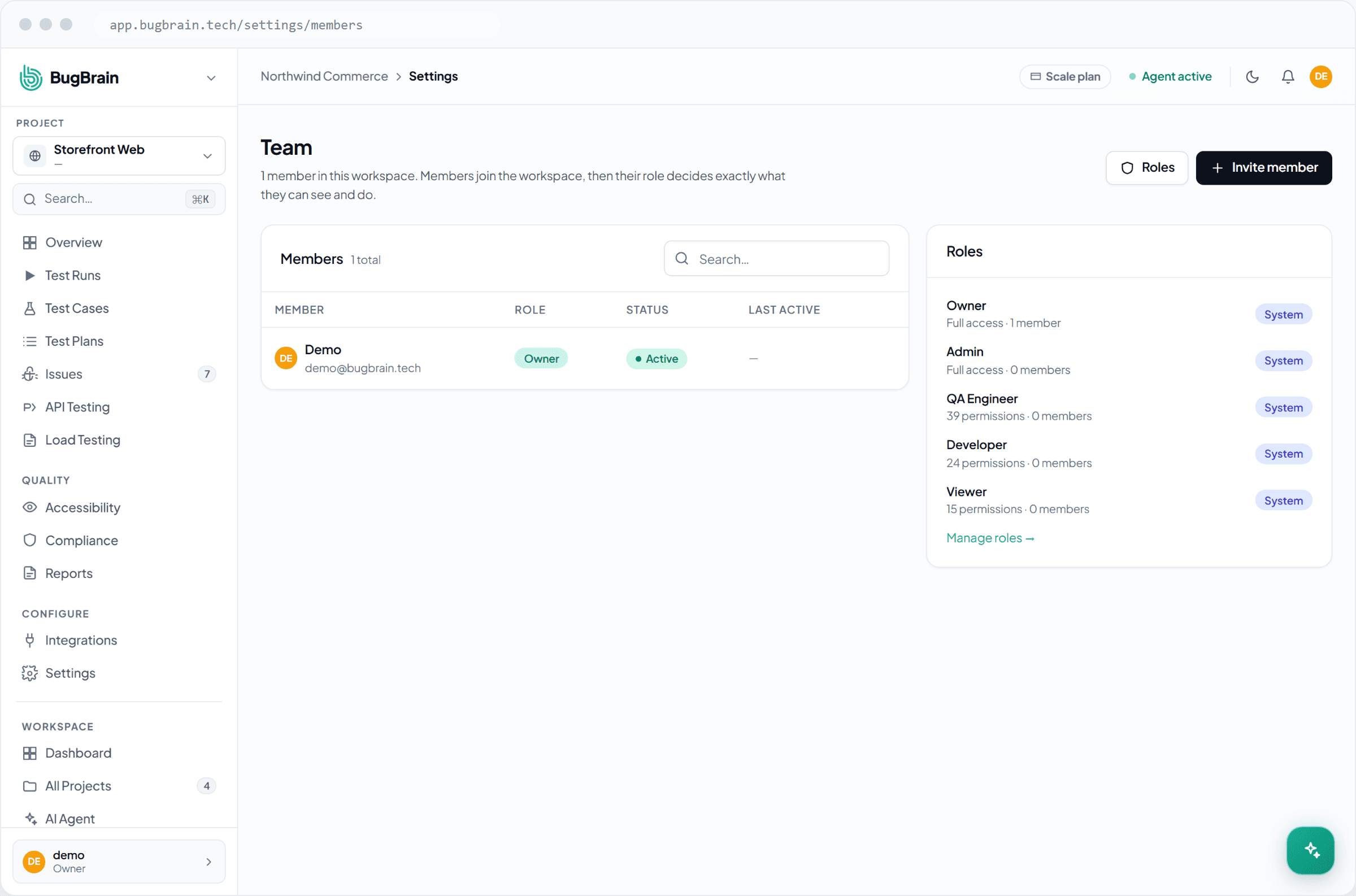
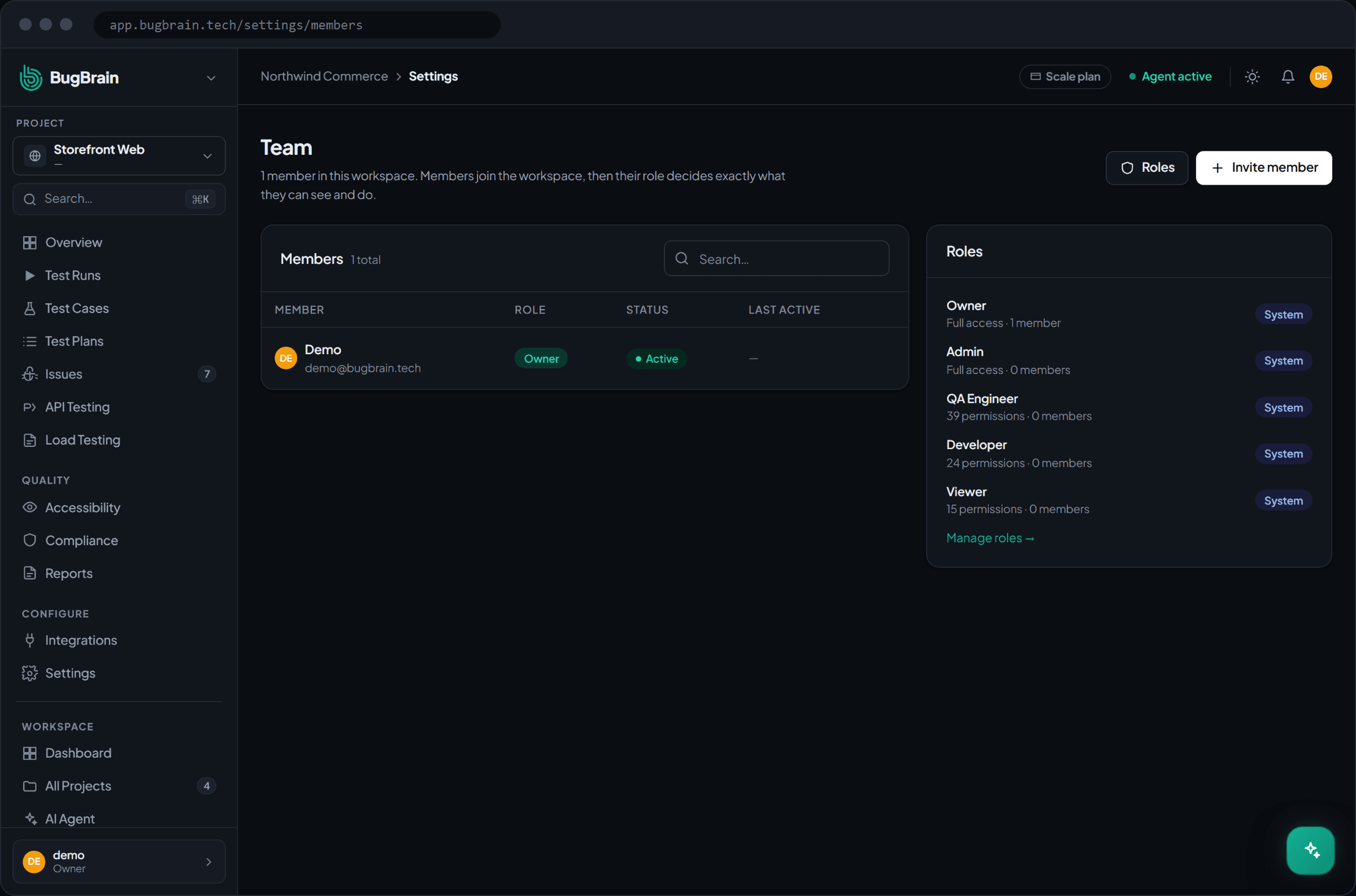
How to invite members and manage permissions in BugBrain — the locked Owner and Admin roles, the editable QA Engineer, Developer, and Viewer templates, and custom roles built from a granular permission catalog.
Team & roles is where you invite people into your workspace and control what each can do. This guide covers inviting members, the built-in roles, and building custom roles from the permission catalog.
What it is#
Every member has a role, and a role is a set of permissions. BugBrain ships with:
- Owner and Admin — locked system roles that always have every permission. You can't edit them.
- QA Engineer, Developer, and Viewer — editable templates you can tune to fit your team.
When you need something more specific, you build a custom role from a granular permission catalog — a list of area:action keys (for example test-cases:edit) that each grant one capability.
How permissions add up
A role grants only the permissions it explicitly holds — an empty role grants nothing at all. The single exception is the locked Owner and Admin roles, which always have everything, and automatically pick up any new permission BugBrain adds later (editable templates do not). So build custom roles by adding exactly the keys a person needs.
Why use it#
- Least privilege — give each person exactly the access their job needs, and nothing more.
- Templates to start from — the QA Engineer, Developer, and Viewer roles cover the common cases out of the box.
- Fits your structure — when the templates don't match, a custom role from the catalog does.
Before you start#
You need the right permissions to manage the team:
members:viewto see the member list.members:inviteto send invitations.members:manageto change a member's role or remove them.roles:manageto create or edit custom roles. This one is privilege-sensitive — anyone with it can shape what others can do, so grant it sparingly.
Invite members#
Open Members
Go to Settings → Members.Send an invitation
Enter the person's email and choose a role for them.They accept and set a password
The invitee follows the email link, sets a password, and joins your workspace with the role you assigned.
Create a custom role#
Open Roles
Go to Settings → Members → Roles.Create or start from a template
Make a new role, or duplicate an editable template (QA Engineer, Developer, Viewer) as a starting point.Pick permissions
Select thearea:actionkeys this role should hold. Remember: it grants only what you check.Assign it
Give the role to members from the Members page.
Owner-only operations stay restricted
Deleting the organization and transferring ownership are Owner-only and can't be handed out through the permission catalog — no custom role, however broad, can perform them. This is deliberate, so the most destructive actions always trace back to the owner.
Tips#
- Default to the narrowest role that lets someone do their job; widen it only when they hit a wall.
- Keep
roles:manageto a small, trusted group — it's the lever that controls everyone else's access. - Use the permissions catalog as the reference for what each
area:actionkey unlocks.
Related#
Frequently asked questions
What are the built-in roles?
Owner and Admin are locked system roles that always have every permission. QA Engineer, Developer, and Viewer are editable templates you can tune. You can also create entirely custom roles from the permission catalog.
How do permissions actually work?
A role grants only the permissions it explicitly holds — an empty role grants nothing. The one exception is the locked Owner and Admin roles, which always have everything (and automatically gain any new permission BugBrain adds). Each permission is an `area:action` key, like `test-cases:edit`.
Can a custom role delete the organization or transfer ownership?
No. Deleting the organization and transferring ownership are Owner-only operations, restricted no matter how you build a role. They aren't grantable through the permission catalog.
What do I need to manage the team?
You need `members:view` to see members, `members:invite` to send invitations, `members:manage` to change a member's role or remove them, and `roles:manage` to create or edit custom roles. The roles permission is itself privilege-sensitive, so grant it carefully.