
Automated accessibility testing
How to run an automated accessibility test in BugBrain — an on-demand WCAG 2.2 audit of your site, with findings grouped by category, evidence screenshots, severity, and a trend over time.
Accessibility testing runs an on-demand audit of your project's website against WCAG 2.2 — the international standard for making web content usable by people with disabilities — and groups what it finds into clear, fixable categories. This guide covers running an audit and reading the report.
What it is#
An accessibility audit opens your site and checks it against WCAG 2.2 success criteria, then packages the results as findings grouped by category — for example color contrast, missing alternative text on images, keyboard navigation, form labels, and focus traps. Each finding carries a severity and evidence (including a screenshot of the affected element), so you know what's wrong, where, and how much it matters.
WCAG, in plain English
WCAG (Web Content Accessibility Guidelines) is the widely adopted standard for accessible websites. "2.2" is the current version. The audit reports against its success criteria so your findings line up with what auditors and assistive-technology users expect.
Why use it#
- Catch the common blockers fast — low-contrast text, unlabeled buttons, and images without alt text are the issues that most often shut real users out, and they're exactly what an automated pass finds reliably.
- Evidence you can act on — every finding includes a screenshot and a category, so a developer can go straight to the fix instead of hunting for the problem.
- See the trend — audits are saved, so you can prove accessibility is improving over time and catch regressions early.
Before you start#
Accessibility testing is gated by a feature flag and a permission:
- The
accessibilityfeature flag must be on for your workspace. If it's off, you won't see the Accessibility tab — ask a workspace owner or super-admin to enable it. - You need the
accessibility:viewpermission to open and read reports. - Your project needs a reachable URL (the same start URL your test runs use).
Run an audit#
Open Accessibility
Go to Projects → Accessibility for your project.Start an audit
Run a new audit. BugBrain opens your site and checks it against WCAG 2.2.Wait for results
When it finishes, the report appears with findings grouped by category.
Read the report#
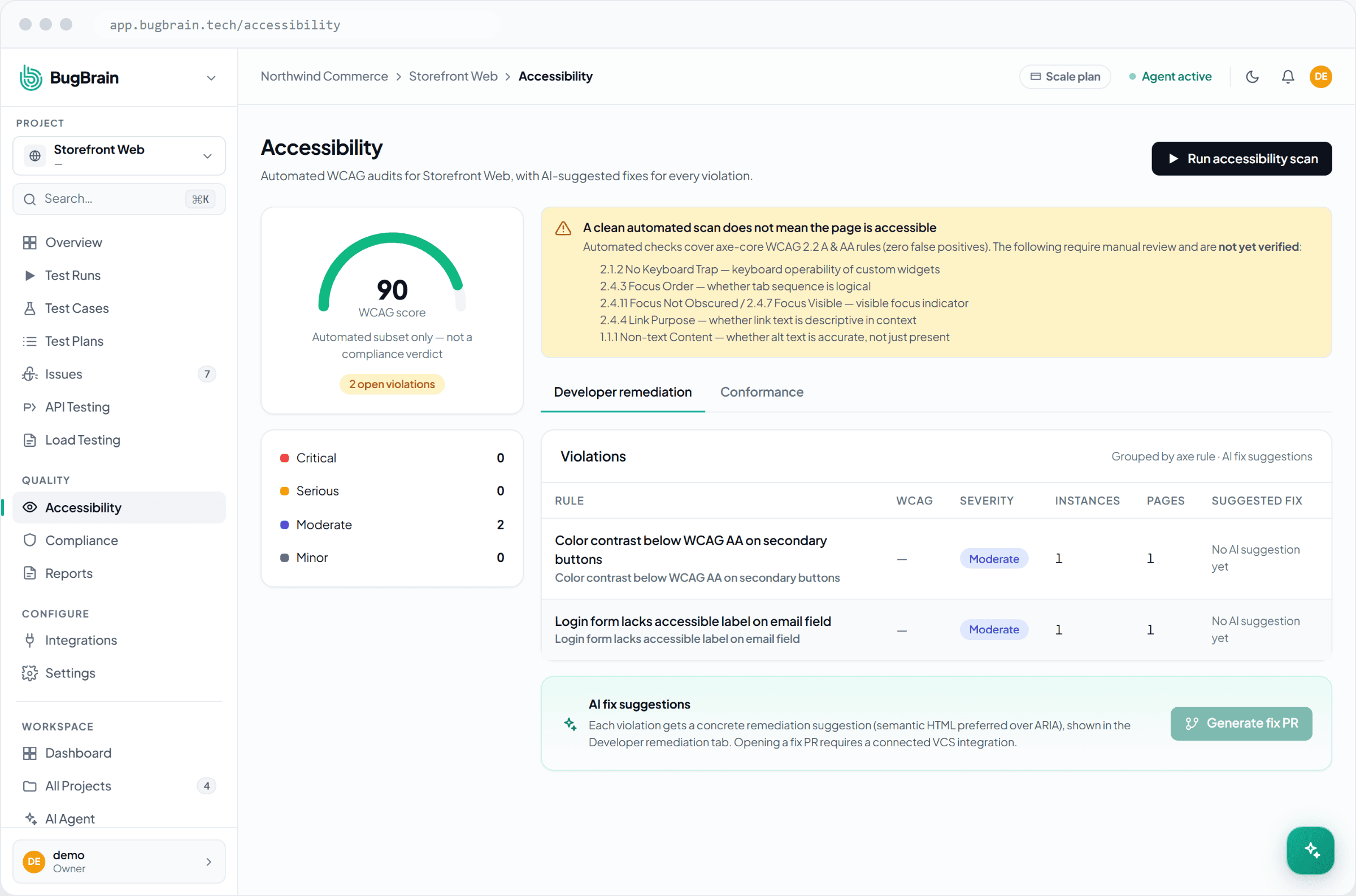
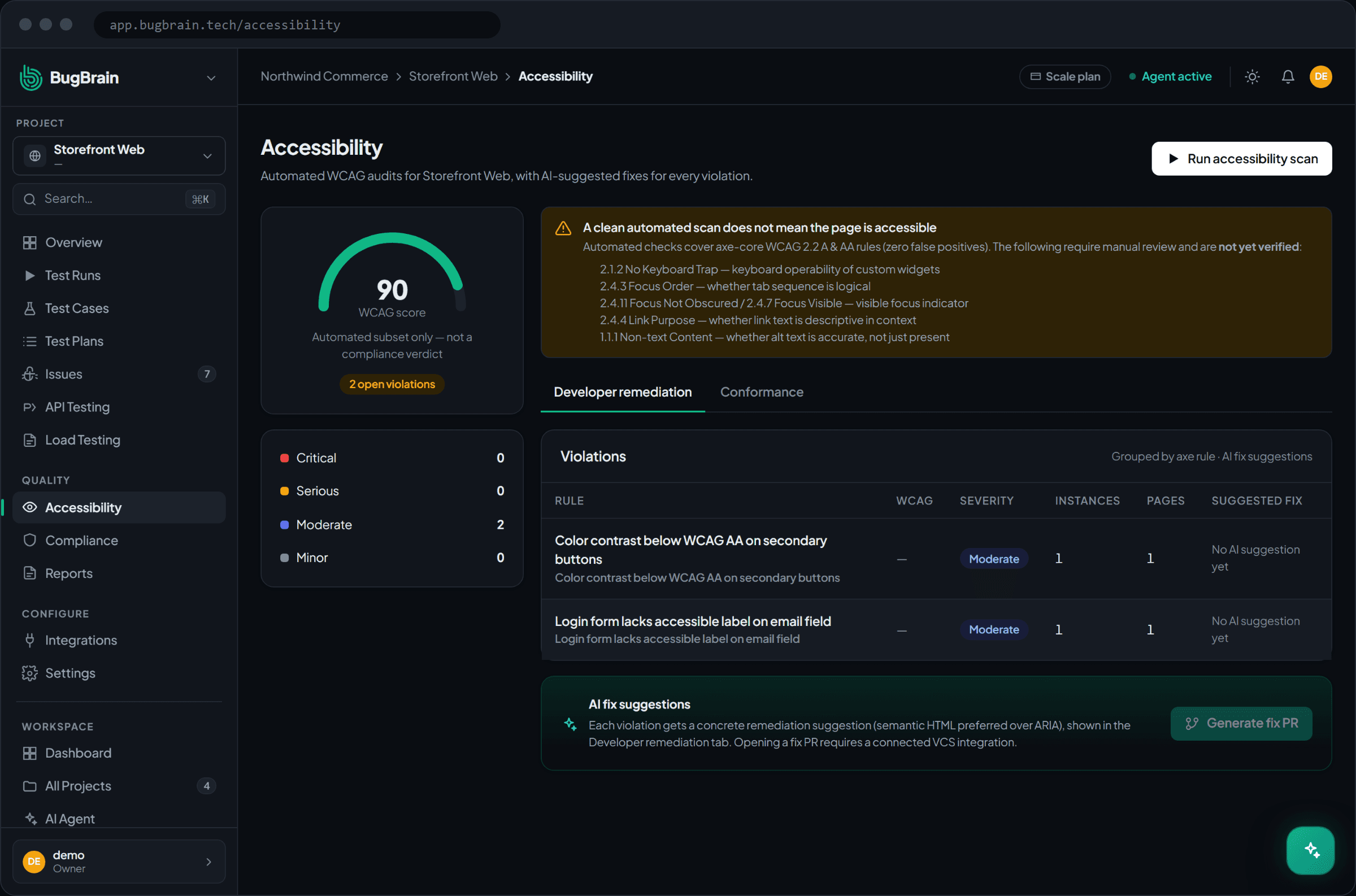
- Categories — findings are grouped so related problems sit together: color contrast, missing alt text, keyboard navigation, labels, focus traps, and more.
- Severity — each finding is rated, so you can fix the highest-impact problems first.
- Evidence — a screenshot (and details about the affected element) pins down exactly what to fix and where.
- Trend over time — historical reports show how your finding count has changed across audits.
Fix by category, not one-off
Issues in the same category usually share a root cause — a single low-contrast color used everywhere, or a button component that never gets a label. Fixing the pattern once clears many findings at the same time.
Tips#
- Run an audit before a release and after big UI changes, so accessibility regressions surface alongside functional ones.
- Start with the highest-severity findings — they're the ones most likely to block real users of assistive technology.
- Remember automated testing is a floor, not a ceiling: it catches machine-detectable issues, but meaningful alt text and clear content still need a human review.
Related#
Frequently asked questions
What standard does the accessibility audit check against?
It checks your site against WCAG 2.2 — the Web Content Accessibility Guidelines, the international standard for making web content usable by people with disabilities. Findings map to common failure categories like color contrast, missing alt text, keyboard access, and form labels.
Does a clean audit mean my site is fully accessible?
No. Automated testing reliably catches a large class of machine-detectable issues, but some accessibility criteria need human judgment (for example, whether alt text is meaningful). Treat the audit as a fast, repeatable safety net, not a certificate of full compliance.
Can I see whether accessibility is improving over time?
Yes. Each audit is saved, so the page shows a trend across past reports — you can watch your finding count fall as fixes land, or catch a regression that reintroduces problems.
Why don't I see an Accessibility tab on my project?
Accessibility is gated by the `accessibility` feature flag. If it's off for your workspace, ask a workspace owner or super-admin to enable it. Viewing reports also needs the `accessibility:view` permission.