Notifications & activity
How notifications and the activity feed work in BugBrain — your Inbox for run, issue, and invite alerts, the org-wide Activity log, and per-event notification preferences.
BugBrain keeps you in the loop two ways: a personal Inbox of notifications aimed at you, and an org-wide Activity feed that logs everything happening across the workspace. This guide explains both, plus how to tune which alerts reach you and where.
What it is#
- Inbox (
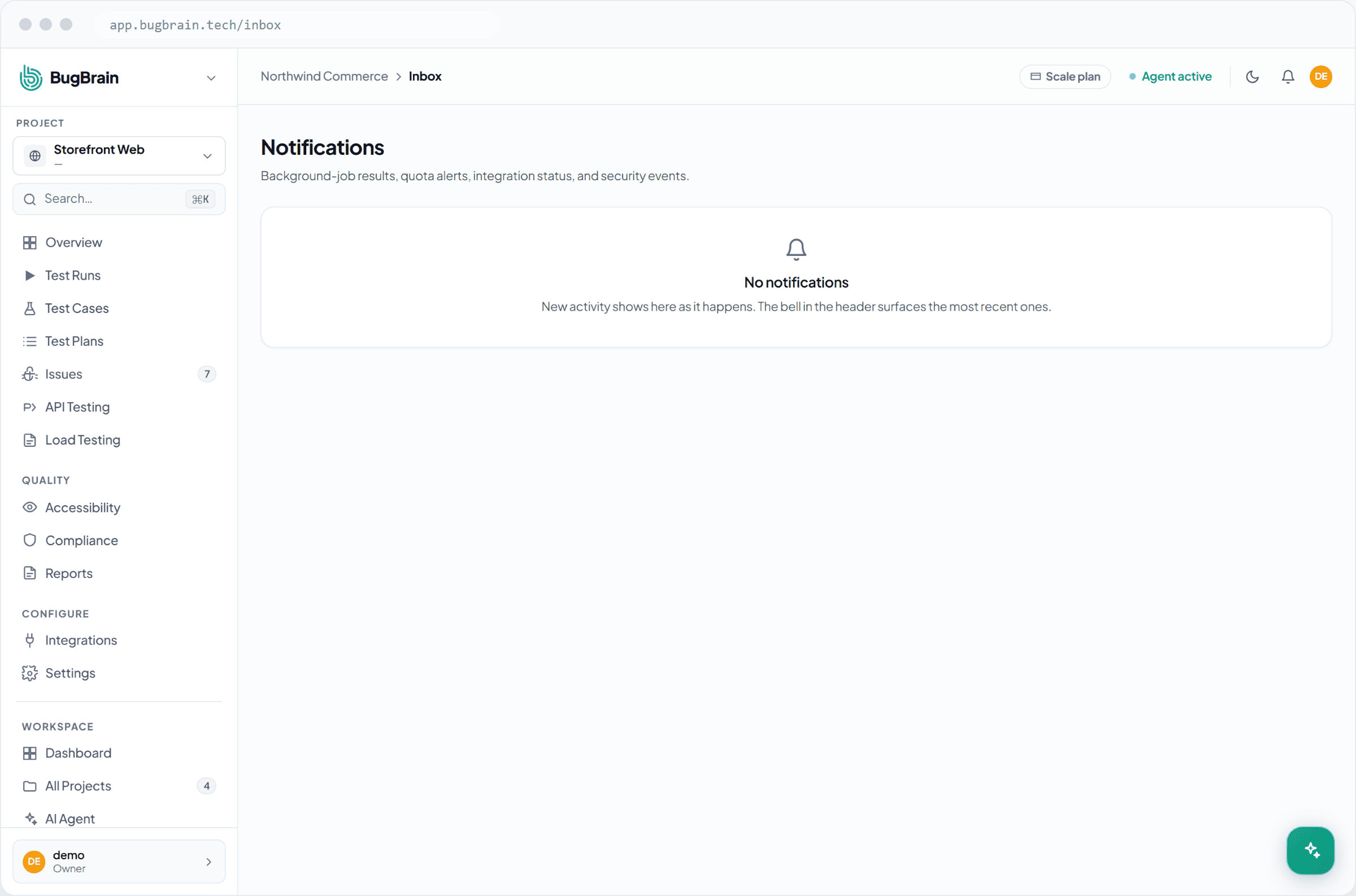
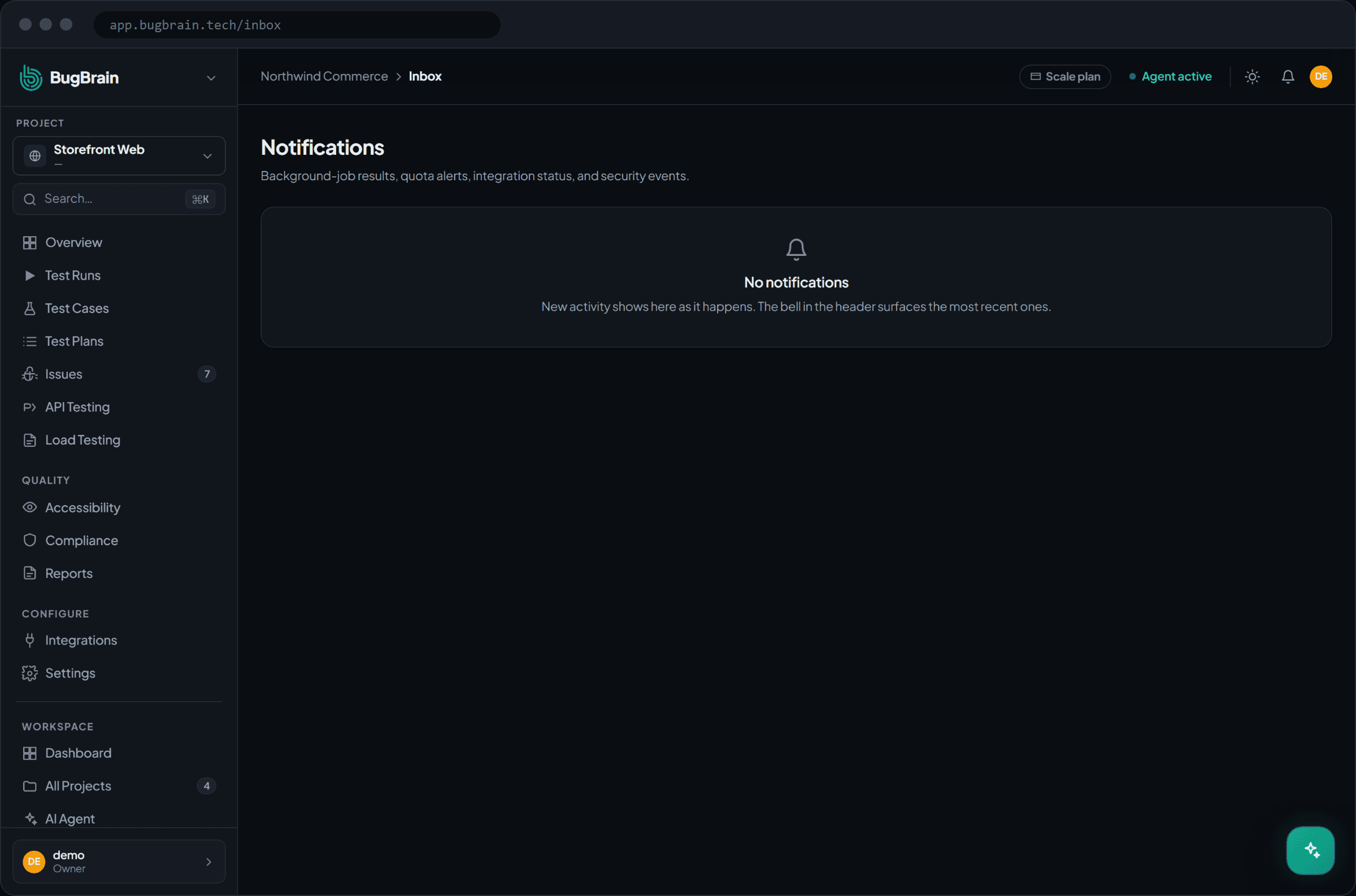
/inbox) — your personal notifications. Run alerts (a run finished or failed), issue alerts (a new issue was found or assigned), and team invites all land here so you don't have to go looking. - Activity feed (
/activity) — a chronological, organization-wide event log. It records the meaningful things that happen across the workspace: runs completed, issues found, members invited, integrations connected, and more. You can filter it by event type, date range, and project. - Notification preferences — per-event settings, under workspace Settings, that control whether each kind of event notifies you in-app, by email, both, or not at all.
The difference in one line: the Inbox is "what should I pay attention to," while the Activity feed is "what has the team done."
Why use it#
- Never miss a result — run and issue alerts reach you without polling the dashboard.
- A shared audit trail — the Activity feed gives everyone a single, chronological record of what changed and when.
- Right signal, right channel — preferences let you keep low-priority events in-app and route the important ones to email.
- Faster collaboration — invites and assignments show up where you'll see them.
Before you start#
Anyone in the workspace has an Inbox and can view the Activity feed for the projects they have access to. Notification preferences are personal — each member sets their own.
Read your Inbox#
Open the Inbox
Go to Inbox (/inbox) from the main navigation. Unread notifications are highlighted.Open an item
Click any notification to jump straight to the run, issue, or invite it refers to.Clear what you've handled
Mark notifications read once you've acted on them to keep the Inbox focused on what's new.
Browse the Activity feed#
Open Activity
Go to Activity (/activity). Events appear newest first.Filter to what matters
Narrow the feed by event type, date range, or project to find a specific change quickly.Drill in
Open any event to see the run, issue, member, or integration it relates to.
Set notification preferences#
Open Settings
Go to workspace Settings and find Notifications.Choose channels per event
For each event type, choose in-app, email, both, or off.Save
Your preferences apply only to you — every member tunes their own.
Tame the noise
Keep frequent events (like every run completing) in-app, and reserve email for high-signal events such as a failed run or a new critical issue. You'll notice the alerts that actually need you.
Tips#
- If teammates say they're "not getting notified," check their personal preferences — channels are per-member, not workspace-wide.
- Use the Activity feed's project filter when reviewing what changed on a single app before a release.
- Pair email alerts on critical issues with an integration like Slack so the whole team sees them at once.
Related#
Frequently asked questions
What's the difference between the Inbox and the Activity feed?
The Inbox is your personal notifications — run alerts, issue alerts, and team invites directed at you. The Activity feed is a chronological, org-wide log of everything that happened in the workspace, filterable by type, date, and project.
How do I control which notifications I get?
Set per-event notification preferences under workspace Settings. For each event type you can choose whether to be notified in-app, by email, both, or not at all.
Will I get an email for every run?
Only if you've enabled email for that event type in your notification preferences. By default you can keep noisy events in-app and reserve email for the ones you care about.
Can I see who connected an integration or invited a member?
Yes — those events appear in the org-wide Activity feed, which records runs completing, issues found, members invited, integrations connected, and more, in chronological order.